
Working with a team
Trackli is built for your own work first, but you can share projects with a few colleagues. Everyone in the team sees the shared project's tasks, and you can assign tasks to each other.
Create a team and add people
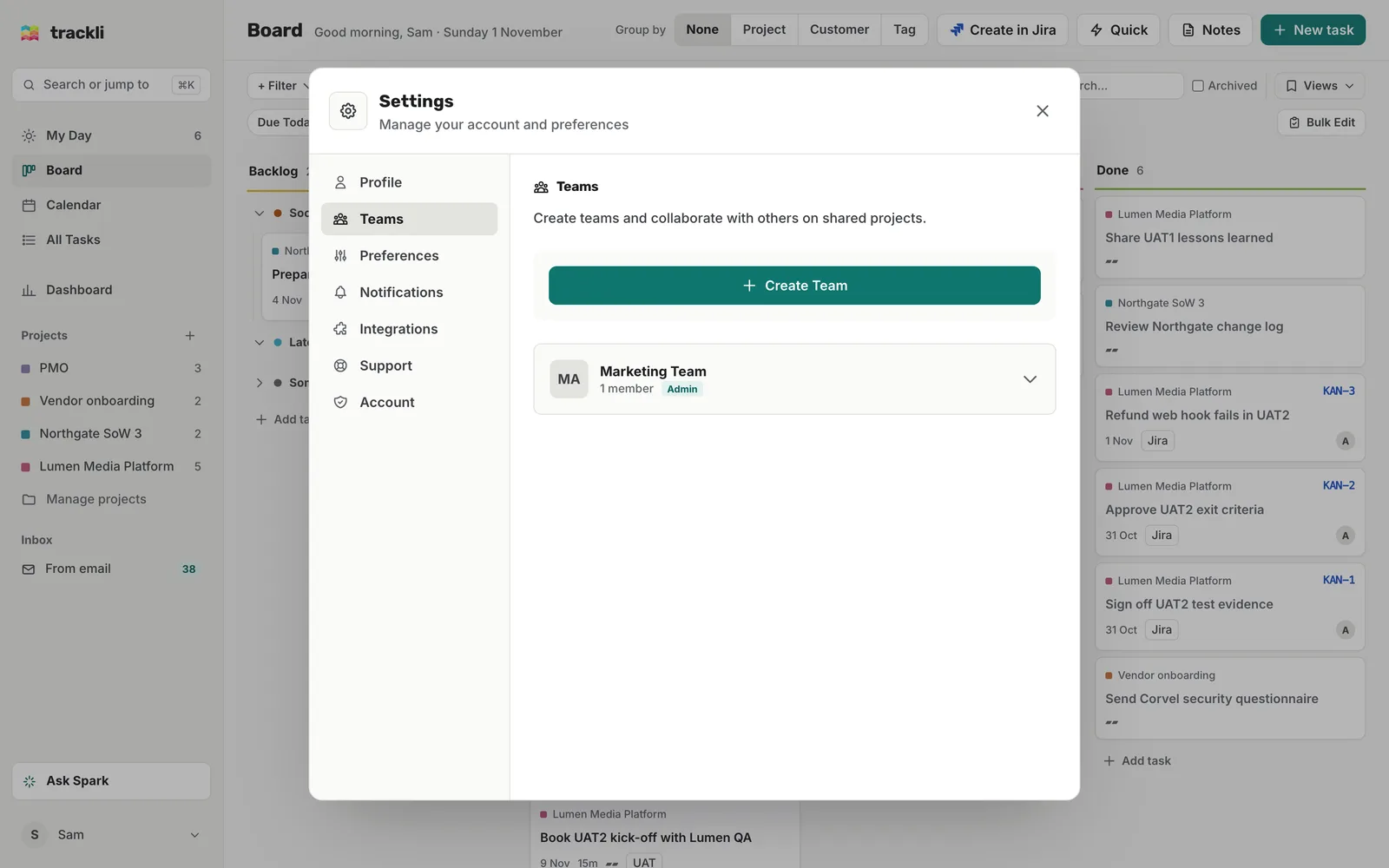
- Open your account menu, choose Settings, then Teams.
- Press Create Team, give it a name (ex: Lumen delivery) and press Create Team.
- On the team, press Add Member and enter your colleague's email address.
If they already use Trackli, they're added straight away. If not, Trackli sends them an invite email, and they join once they've created an account. You can also copy the invite link and send it yourself. Invites expire after 7 days.
Each member is an Admin or a Member. Admins can add people, change roles, rename the team and delete it.
Share a project with the team
- New project: when you create a project and you're in a team, choose Team instead of Personal, then pick the team.
- Existing project: edit the project (see Projects) and choose the team under Share with Team. Choose Personal (only you) to stop sharing it.
Personal projects stay private to you. Only projects you share are visible to the team.
Assign tasks
In a shared project, the task window has an Assignee field listing the team's members. Pick someone and the task shows on their board too.
Tasks other people assign to you also show under Assigned to You in your daily digest.
Comments
Open a task, expand Activity, type in Add a comment or note... and press Add Comment. Everyone who can see the task sees the comment. Activity also lists changes automatically, like who moved the task to In Progress or changed its due date.
Leave a team
In Settings, then Teams, choose Leave Team on the team. You lose access to its shared projects, and tasks assigned to you there become unassigned.