
The task window
Click any task to open the task window. This is where you see and change everything about it. On a computer the main details are on the left and the settings panel is on the right. On a phone it's one long page, with Cancel and Save at the top.
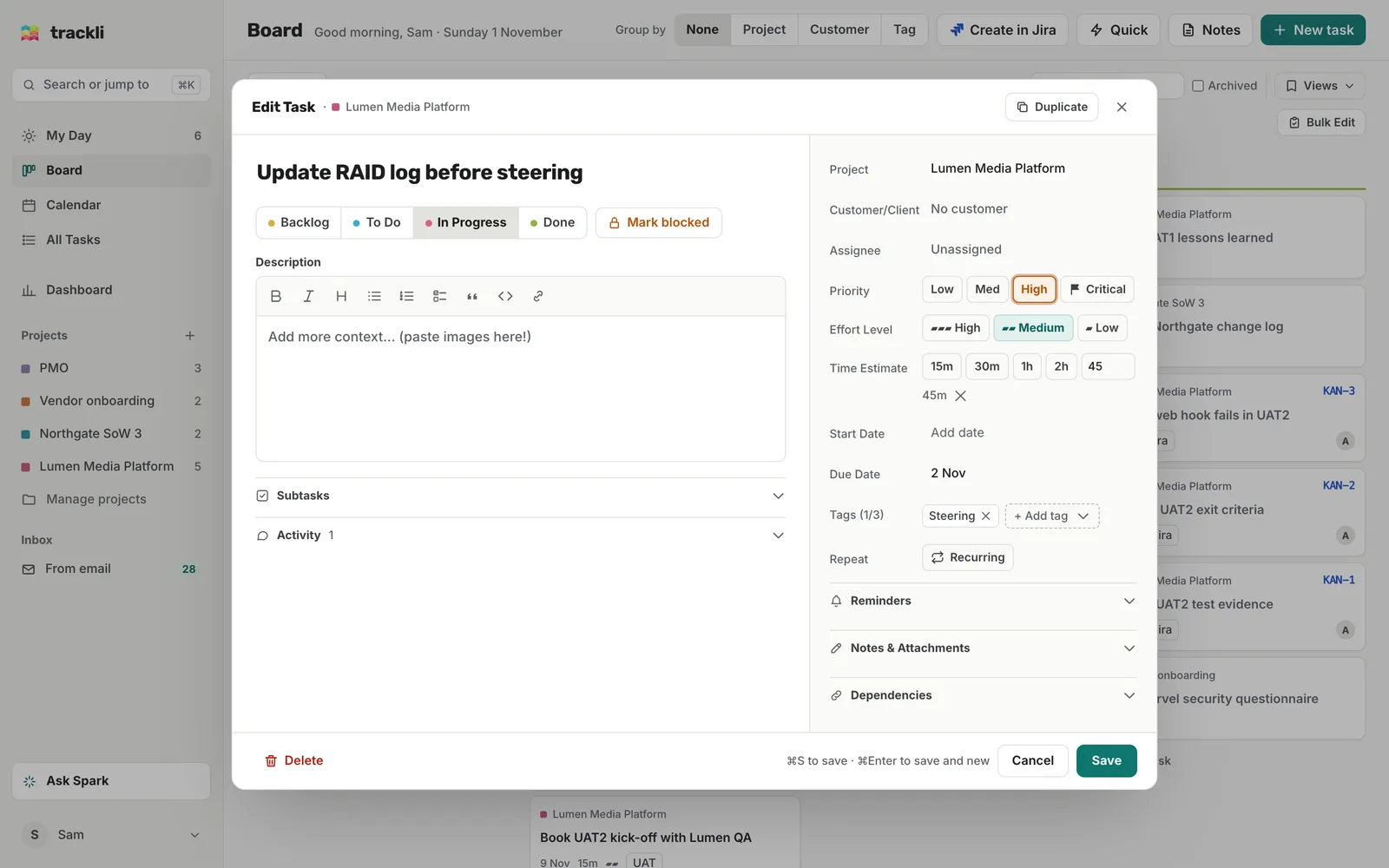
We'll use Sam's task Update RAID log before steering as the example.
The main column
- Title: what needs doing. You can type #ProjectName here to pick the project (see Create a task).
- Status: Backlog, To Do, In Progress or Done.
- Mark blocked: next to the status, on tasks you've already saved. See Blocked tasks and Move to tomorrow.
- Description: the background to the task, with formatting such as bold, lists and links.
- Subtasks: smaller steps, each with its own status and dates. See Subtasks.
The settings panel
- Project: required. Changing it clears the tags, since tags belong to a project.
- Customer/Client: who the work is for. It's hidden if the project has customers switched off. See Customers.
- Assignee: who's doing it. It's hidden when the project only has one person to choose from.
- Priority: Low, Med, High or Critical. Click the selected one again to clear it. High and Critical show on the card.
- Effort Level: Low, Medium or High, shown as one, two or three bars. It's a quick way to say how much energy the task needs.
- Time Estimate: 15m, 30m, 1h, 2h, or type your own number of minutes.
- Start Date and Due Date: type a date or pick one. A red Overdue label appears when the due date has passed, and you'll get a note if the start date is after the due date.
- Start Time and End Time: these appear once there's a start date from yesterday onwards. Type times like 9am, 230pm or 14:30. If there's a time estimate, the end time fills itself in.
- Tags: up to three per task, from the project's tags. Choose + Create new tag to add one. See Tags.
- Repeat: turn on Recurring to repeat the task. See Recurring tasks.
Sections you can open
Further down are sections you open by clicking their name:
- Reminders: get nudged before the task is due. See Task reminders.
- Notes & Attachments: running notes and files. See Notes and attachments.
- Dependencies: other tasks this one is waiting on. See Dependencies.
- Activity: comments, plus an automatic history of changes like status, dates and assignee.
Tasks linked to Jira also have a Jira section, with the Jira status, sprint and parent. See Jira and Confluence.
Saving
Click Save (or Create for a new task), or press Cmd+S (Ctrl+S on Windows). On a saved task, Cmd+Enter (Ctrl+Enter) saves it and opens a new one in the same project.
Duplicate and Delete are at the bottom. See Duplicate, complete, archive and delete.
Tips
- Mark blocked saves straight away. Everything else waits until you save.
- Press Esc or click Cancel to close without saving your changes.