
Delete your account
If you're done with Trackli, you can delete your account yourself from Settings. It removes your sign-in and everything in your account, straight away.
Before you start
- Export anything you want to keep. Deleting can't be undone. See Export your tasks.
- Check your team projects. Team projects you created aren't deleted. They're handed to someone else in the team (see below), so your teammates keep their work.
Delete your account
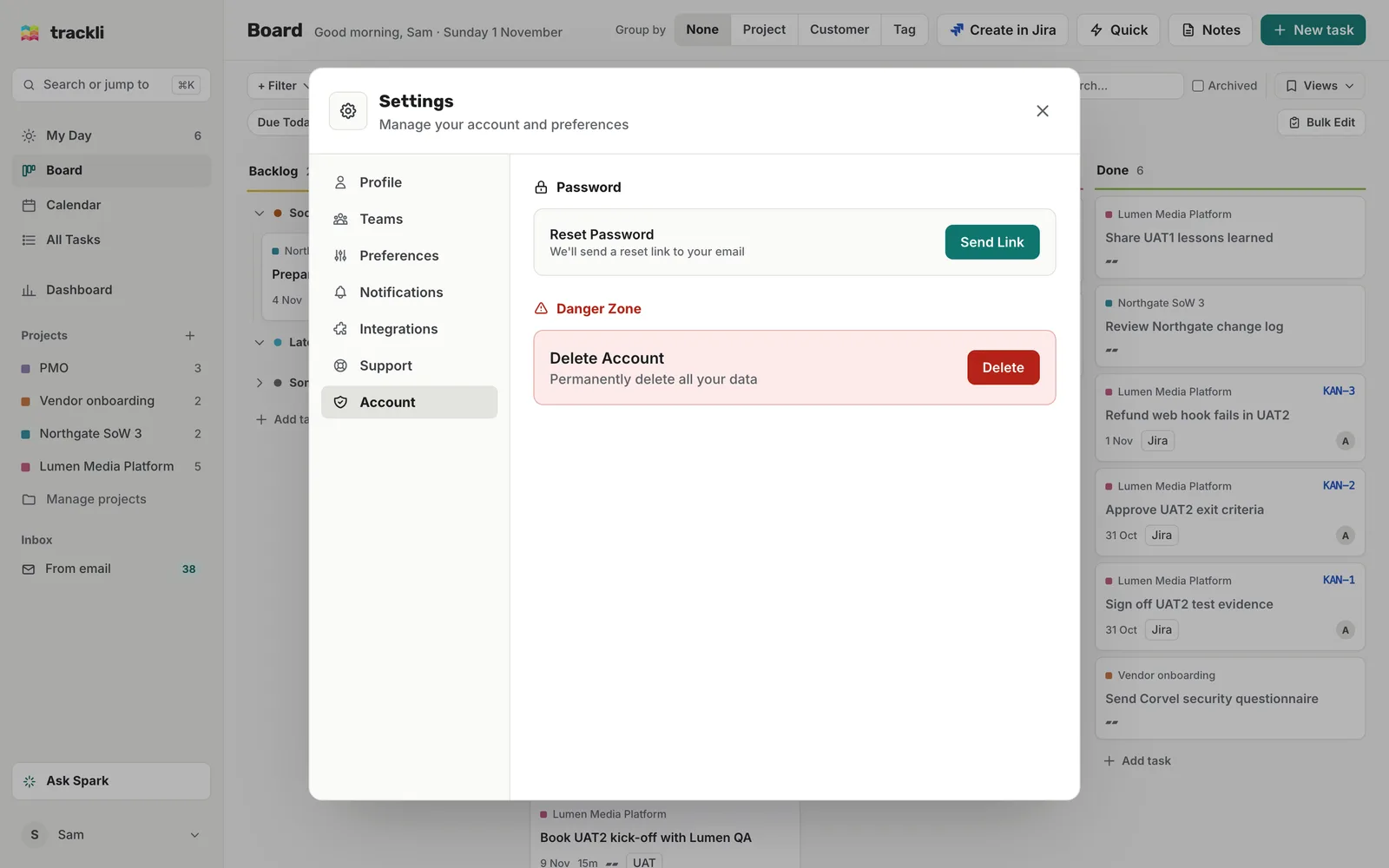
- Open your account menu, choose Settings, then Account.
- Under Danger Zone, next to Delete Account, press Delete.
- Type
DELETEin capitals to confirm. - Press Delete Everything.
Trackli deletes your account and signs you out.
What gets deleted
- Your sign-in, profile and settings
- Your projects and tasks, with their notes, subtasks, reminders and attachments
- Your connections to Jira, your calendars, Claude and your other tools, so Trackli can't use them any more
- Your email-to-task address and anything waiting in your inbox
What happens to shared work
- Team projects you created go to another admin of that team, or to the longest-serving member if there isn't one (they become an admin).
- Teams you created stay, with that person in charge.
- Tasks you added to someone else's shared project stay in that project and now belong to its owner. Tasks that were assigned to you become unassigned.
- Comments you left on shared tasks stay. The activity entries for changes you made (ex: moving a task to Done) are removed.
Tips
- If you only want a fresh start, you don't need to delete your account. Archive or delete the tasks and projects you don't need instead.
- Deleting removes Trackli's copy of your connections. To tidy up the other side too, remove Trackli from your Google, Microsoft or Atlassian account's connected apps.
- If something goes wrong, get in touch from the Support page and we'll finish it for you.