
Notification settings
All your notification choices are on one page. Open your account menu, choose Settings, then Notifications.
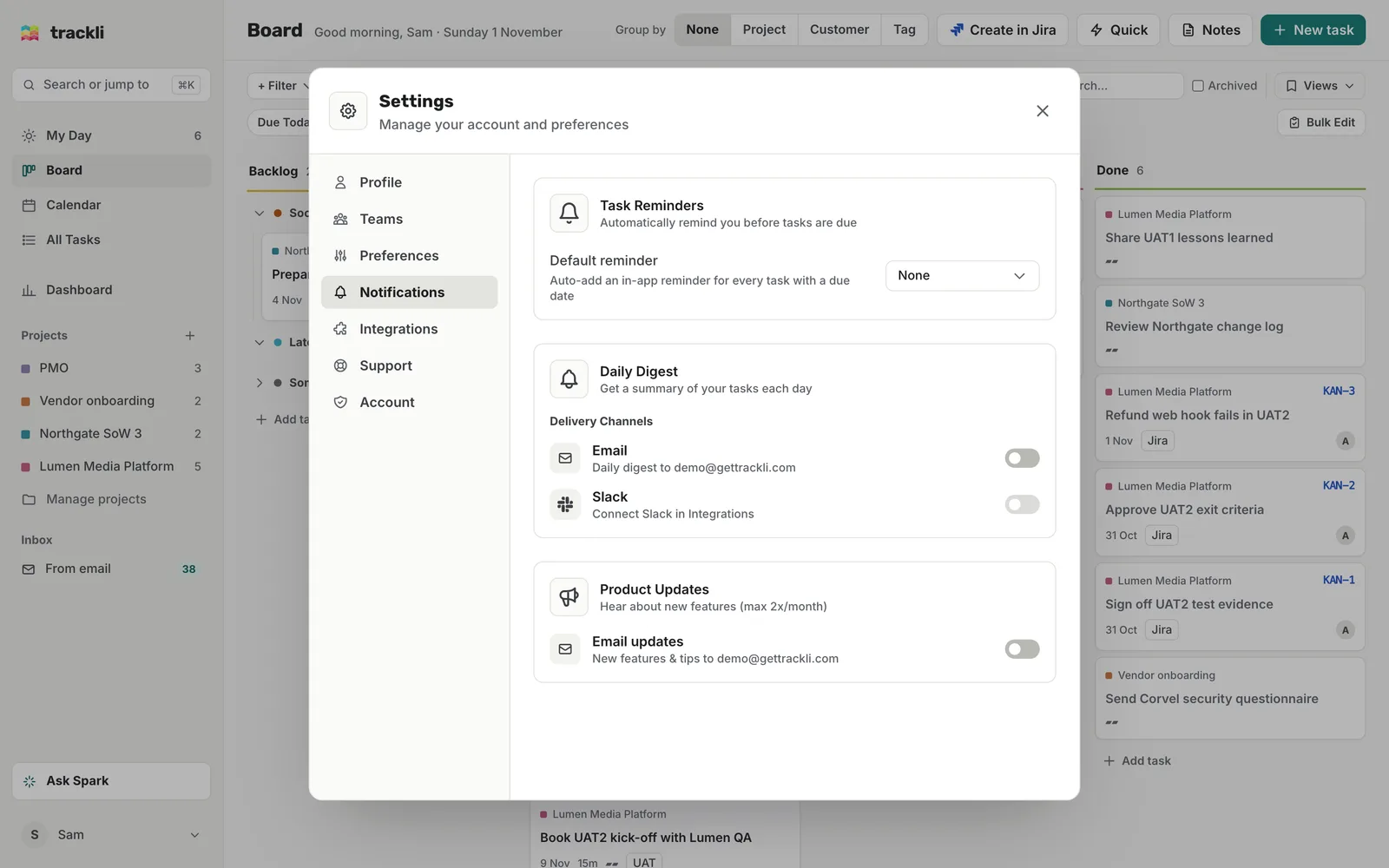
Task Reminders
Default reminder adds an in-app reminder to every task with a due date. Choose None, At time of due, 1 hour before, 1 day before, 3 days before or 1 week before.
Default reminders only show inside Trackli. Reminders you add to a task yourself also go by email and Slack. More in Task reminders.
Daily Digest
- Delivery Channels: turn on Email, Slack, or both. Slack needs connecting first in Settings, then Integrations.
- Schedule: Send digest at sets the hour. Your time zone is shown next to it.
- Include in Digest: switch off Task reminders (your unblocked, overdue, due today and due tomorrow lists) or Task assignments (tasks other people assigned to you).
The Email and Slack switches here also decide where task reminders go. If both are off, Trackli doesn't send reminders at all, so keep one on if you rely on them. More in The daily digest.
Product Updates
Email updates sends you news about new features and tips, at most twice a month. Every email has an unsubscribe link too.
Tips
- If your digest arrives at the wrong hour, check the time zone shown next to Send digest at.
- To stop everything for a while (ex: you're on holiday), turn off Email and Slack. Note that any reminders due while they're off are skipped, not saved for later.