
The Board
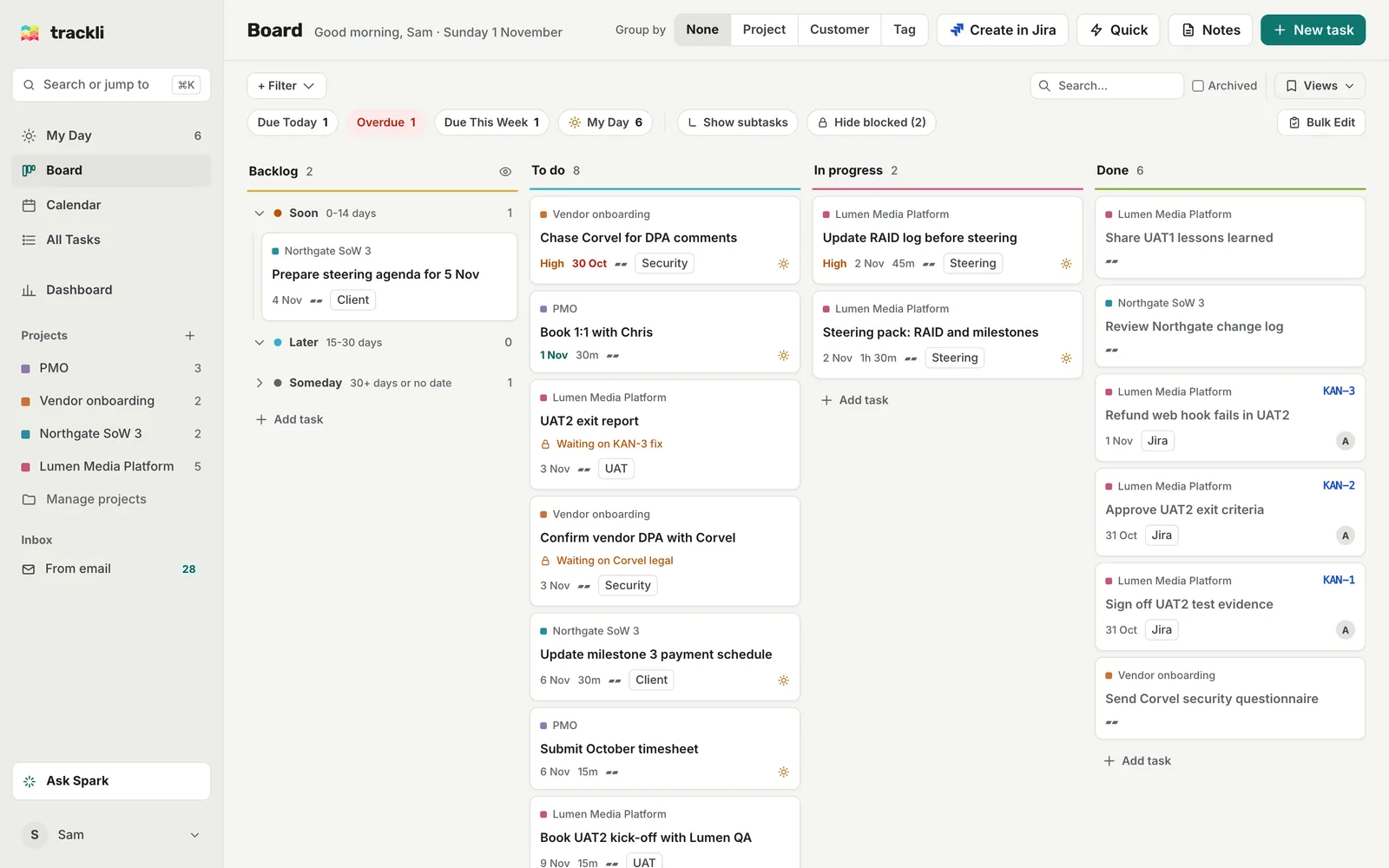
The Board shows all your work as cards in four columns: Backlog, To do, In progress and Done. Each column shows its task count at the top, so you can see at a glance how much is waiting and how much is moving.
Open it from Board in the sidebar, or the bottom bar on a phone.
Move cards between columns
On a computer, drag a card into another column to change its status. Drag Book UAT2 kick-off with Lumen QA from To do into In progress and it's marked as started. A "Drop here" outline shows where it will land.
Each column lists the first 8 cards. Choose Show all at the bottom to see the rest. Done lists your most recently finished tasks first.
To add a task straight into a column, choose Add task at the bottom of it.
Quick actions on a card
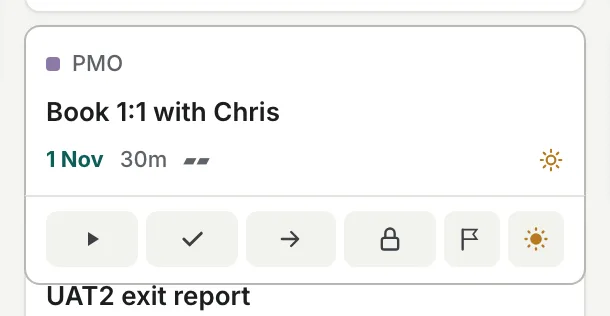
Hover over a card and a row of actions appears underneath it:
- Start moves the task to In progress.
- Done marks it done (on a finished task it becomes Reopen).
- Move to tomorrow pushes it to tomorrow. It only shows when the task is due, starting or in My Day today (or earlier).
- Mark blocked lets you say what it's waiting on and when it should come back. See Blocked tasks and Move to tomorrow.
- Priority sets the priority without opening the task.
- Add to My Day (the sun) puts it on today's list.
Click a card to open the full task. Double-click the title to rename it in place.
Backlog buckets
The Backlog column sorts itself into three buckets, based on the earlier of the task's start date and due date:
- Soon: within the next 14 days, or already past
- Later: 15 to 30 days away
- Someday: more than 30 days away, or no date at all
Draft Q1 resource plan has no dates, so it sits in Someday until you give it one.
To move a task to a different bucket yourself, drag it there. Trackli asks for a start and due date that fit the new bucket. Any date you leave empty is cleared, and moving to Someday clears both unless you set new ones. Your choice sticks until the task's dates change, then it sorts by date again.
Someday can get long, so the eye button at the top of the Backlog column hides it. If Someday tasks go untouched for more than 30 days, the Backlog shows a Review now prompt. It takes you through them one at a time, so you can Move to Soon, Keep, Archive or Delete each one.
Group by
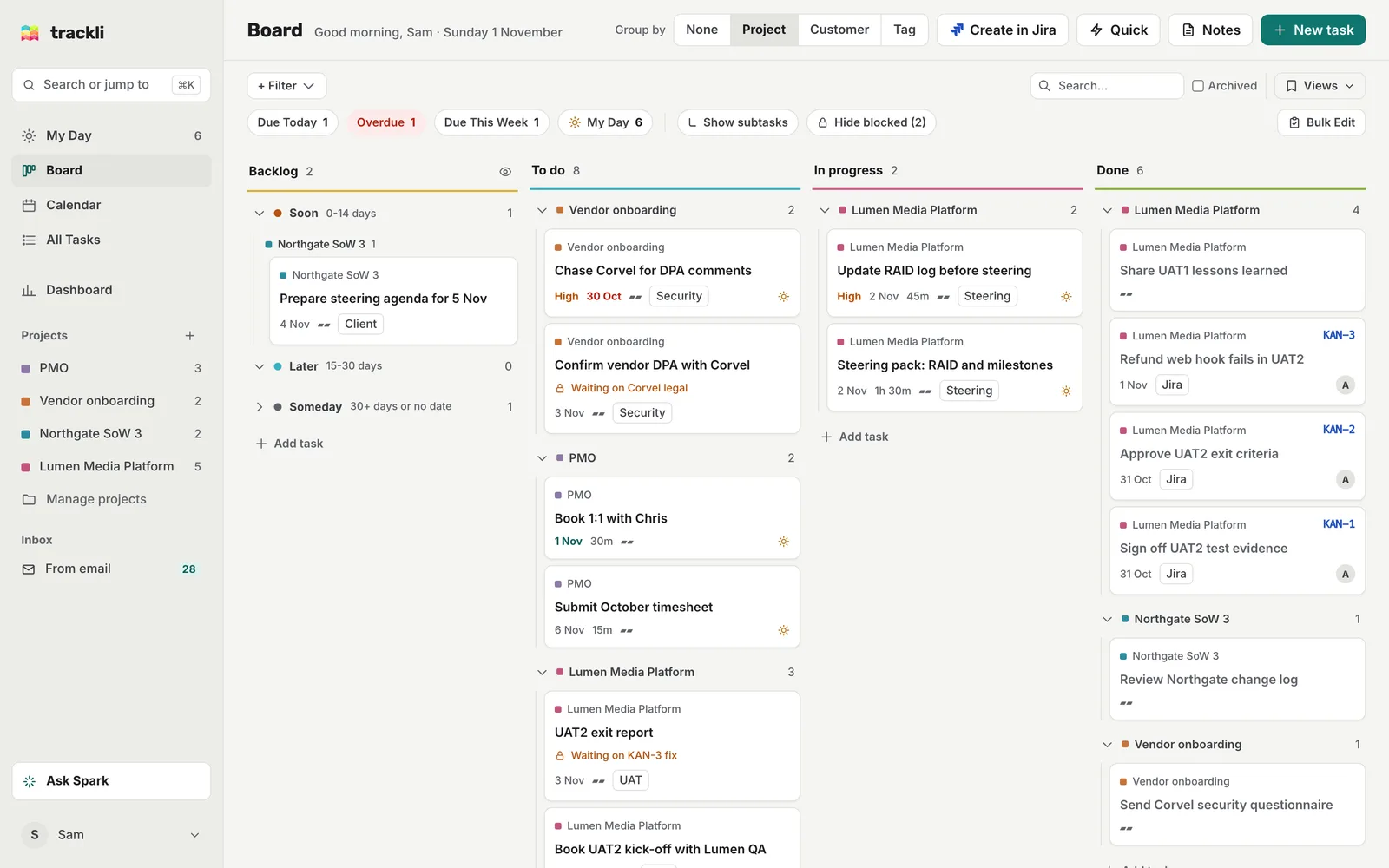
Use Group by at the top of the page to split each column into groups by Project, Customer or Tag. None goes back to plain columns. Grouping by Tag uses each task's first tag alphabetically. Group by is on computers and tablets.
Hide the Done column
If you'd rather not see finished work, open Settings from your account menu, go to Preferences, and turn on Hide Done column on board. The other three columns spread out to fill the space. On a phone, the same switch is in the Filters sheet.
Bulk edit
Choose Bulk Edit on the right of the filter bar, then click the cards you want to change. From the bar at the top you can set Status, Project, Assignee, Effort, Due date, Start date, Customer or Priority for all of them, then press Apply. Tag adds a tag straight away, and Delete asks you to confirm first. Bulk edit is on computers only.
On a phone
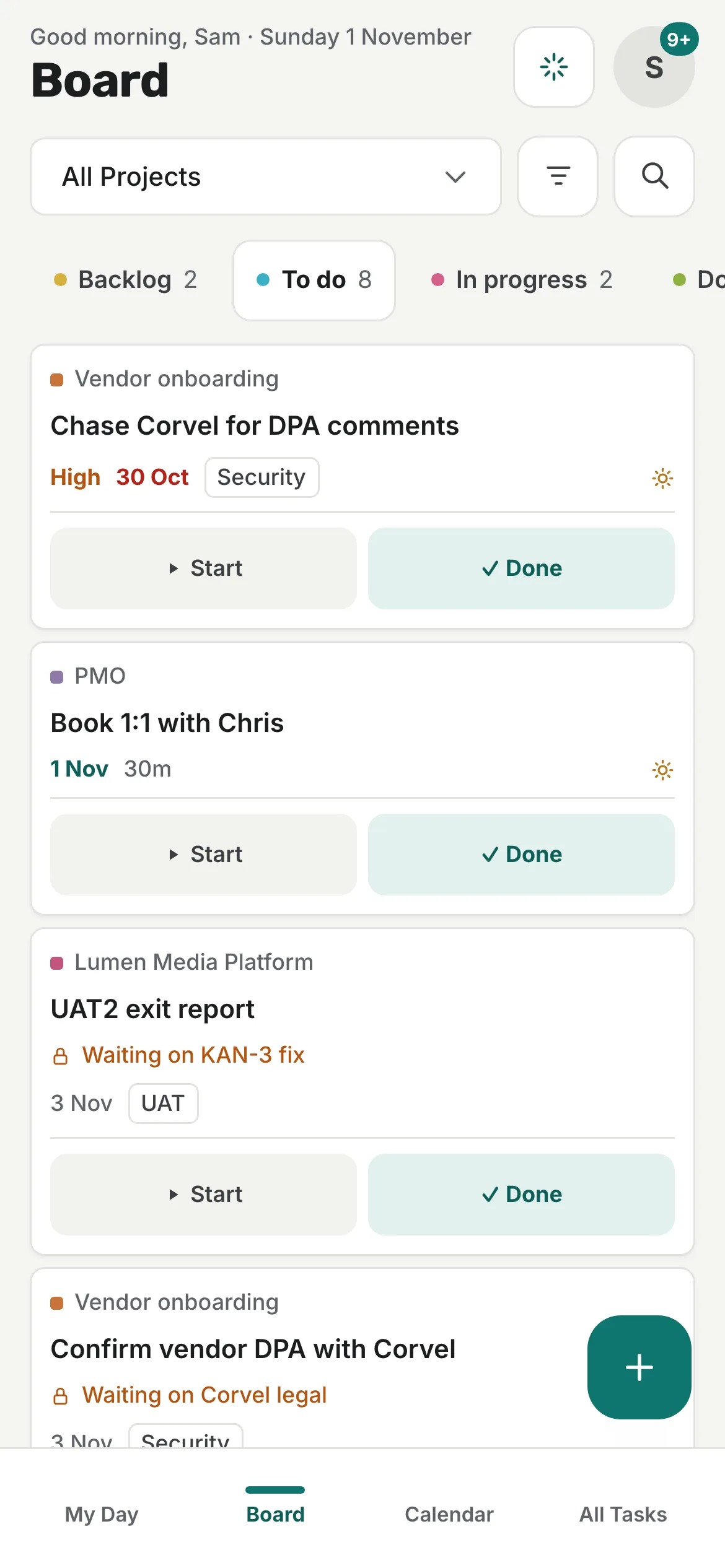
The Board shows one column at a time. Tap the status tabs along the top to switch between them (To do is shown first). Each card has buttons along the bottom to move it on, for example Start and Done on a To do card.
Tips
- Quick filters. The chips above the board narrow it down in one tap: Due Today, Overdue, Due This Week and My Day. Each shows how many tasks match, and Overdue turns red when something is late. On a computer, Blocked is under + Filter. On a phone, all of them (plus Blocked) are in the Filters sheet.
- Filter by project from the sidebar. Click Vendor onboarding in the sidebar and the Board shows only that project's tasks. Click it again (or the project pill above the board) to see everything. This works on My Day, Calendar and All Tasks too.
- Click a tag, project or customer on a card to filter the board by it. Click the Security tag on Chase Corvel for DPA comments to see all your security work.
- Hide blocked hides tasks that are waiting on someone else, so you only see what you can act on. Show subtasks turns subtasks into their own cards. Both are next to the quick filters on a computer.
- For more filters, and to save a set of filters, see Filters and saved views.