
Filters and saved views
Filters cut the Board down to just the tasks you care about right now. Once you've got a set you like, save it as a view and get back to it in one click.
These filters are on the Board. All Tasks has its own filters, covered in All Tasks.
Add a filter
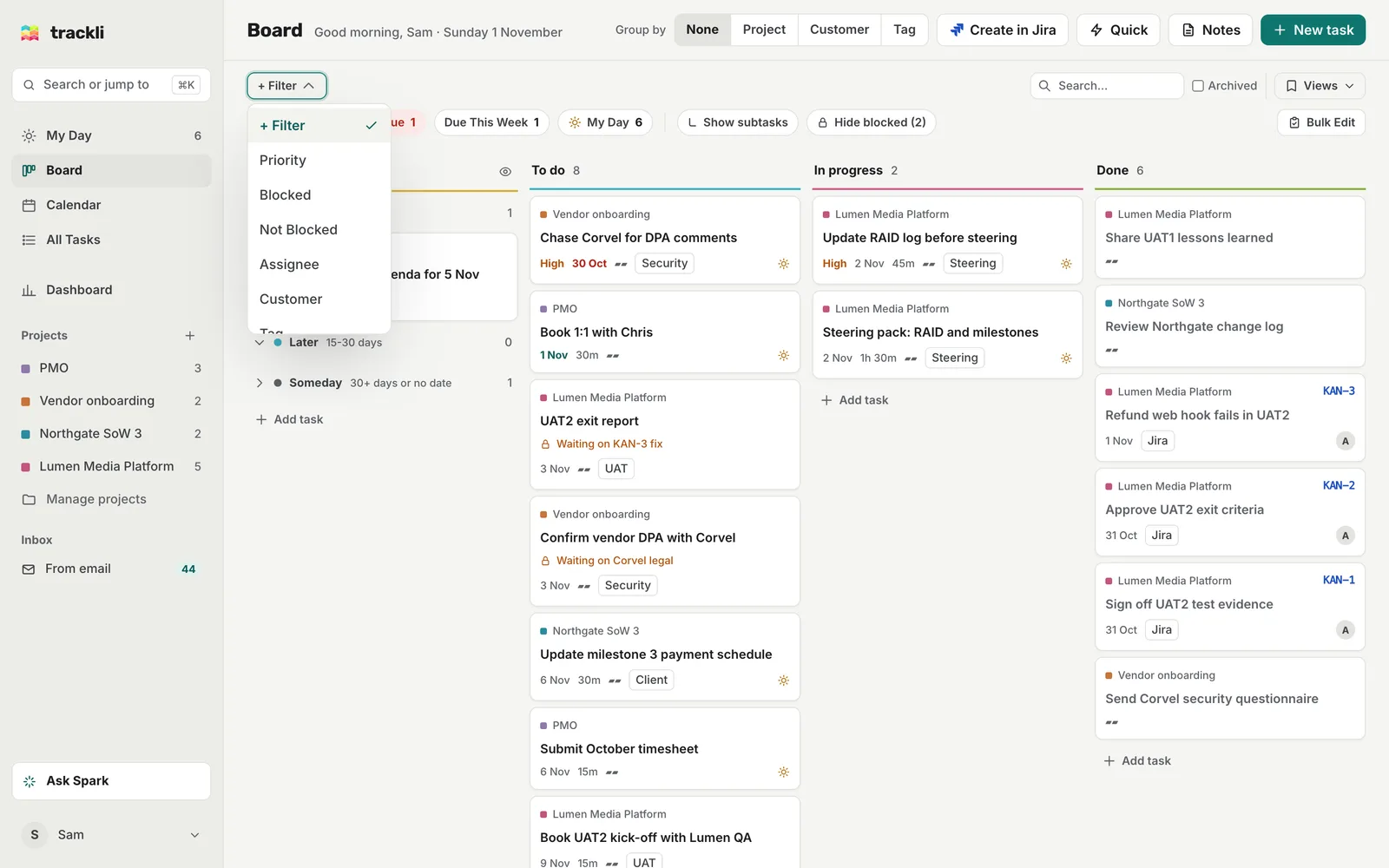
- On the Board, choose + Filter in the filter bar.
- Pick what to filter by: Priority, Blocked, Not Blocked, Assignee, Customer, Tag, Effort, Due Date, Start Date, Time Estimate or Source (where the task came from, such as Jira or Trackli only). If you've connected Jira, Sprint is there too.
- Tick the values you want. You can tick more than one, for example the Steering and UAT tags together.
For dates, choose a condition first (Has Date, = Equals, < Before or > After) and then the date.
Each filter shows as a pill in the filter bar, like Tag: Steering. Click a pill to change it, or its cross to remove it. Clear removes every filter at once.
The quick filters (Due Today, Overdue, Due This Week and My Day), the search box and the project you've picked in the sidebar all work alongside these. See The Board for more on those.
Save a view
- Set up the filters you want. Say the Lumen Media Platform project, high and critical priority, and Due This Week.
- Open Views at the right of the filter bar and choose Save current filters.
- Give it a name and press Save. Trackli suggests one based on your filters.
A saved view keeps the project, quick filters, filter pills and search.
Use your views
Open Views and pick one to apply it. The button then shows the view's name.
If you change a filter while a view is applied, Trackli quietly lets go of the view, so the button goes back to Views. Your saved view isn't changed. Pick it again any time to get it back exactly as you saved it.
To rename or delete a view, hover over it in the Views list and use the Rename or Delete button that appears.
You can keep up to 20 saved views. If you hit the limit, delete one to make room.
On a phone
Tap the filter button next to the project picker on the Board. The Filters sheet has your saved views at the top, then the quick filters, priority and the other fields. Choose Save as View to save what you've set, or Clear All to start again.
Tips
- Saved views are stored with your account, so they follow you to your other devices.
- Click a tag, project or customer on any Board card to filter by it straight away.