
The Calendar
The Calendar shows your tasks on the days they start or are due, next to the meetings from your connected Google or Outlook calendar. It's the place to work out when you'll actually do something. Open it from Calendar in the sidebar, or the bottom bar on a phone.
Day, week and month
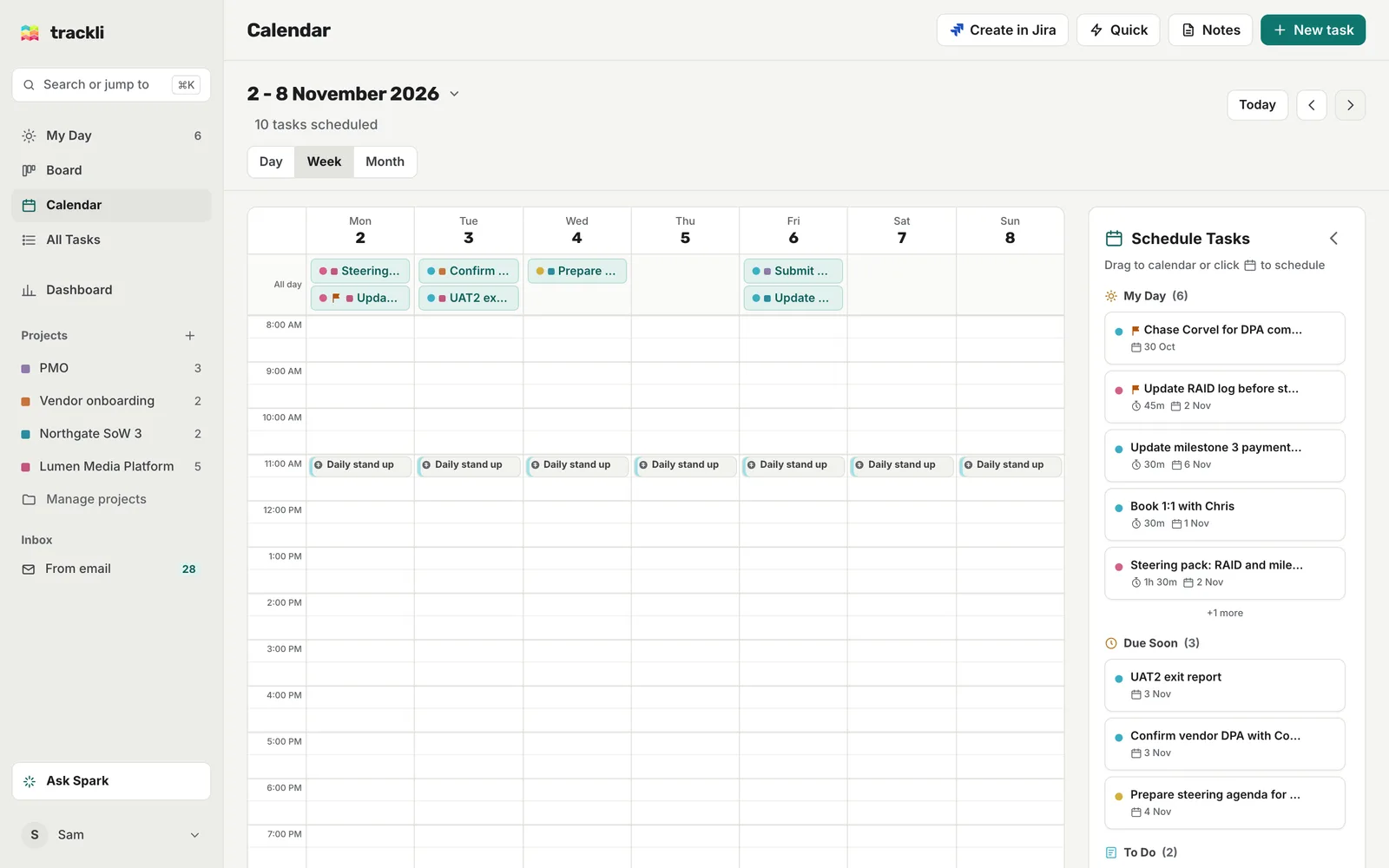
Switch between Day, Week and Month at the top. Today jumps back to today, and the arrows move back and forward.
On a computer, press D, W or M to switch views and T to jump to today.
Tasks that run over several days, like a task that starts Monday and is due Thursday, show as one bar across those days.
Schedule a task into a time slot
In Day and Week view, the Schedule Tasks panel on the right lists tasks you could plan in, grouped into sections such as Overdue, My Day, Due Today, Due Soon and Quick Wins.
- Drag a task from the panel onto a time slot. Say Update RAID log before steering onto 10am tomorrow.
- Trackli sets the task's start and due date to that day and gives it a start and end time. The length comes from its time estimate (45 minutes here), or 30 minutes if it has none.
If you'd rather not drag, click the calendar button on a task in the panel, then click a time slot.
A few things happen on the way:
- A task in Backlog moves to To Do once it's scheduled.
- A task dropped onto today is added to My Day.
Move and resize
- Move: drag a scheduled task to another time or day.
- Resize: drag the bottom edge to make it longer or shorter, or the top edge to start earlier or later. It snaps to 30 minute steps.
- Month view: drag a task onto another day to move it. Its times stay the same.
Hover over a scheduled task for quick buttons to start it, mark it done, or remove it from the calendar. Removing it only clears the time, so the task keeps its dates. Click a task to open it.
Your meetings
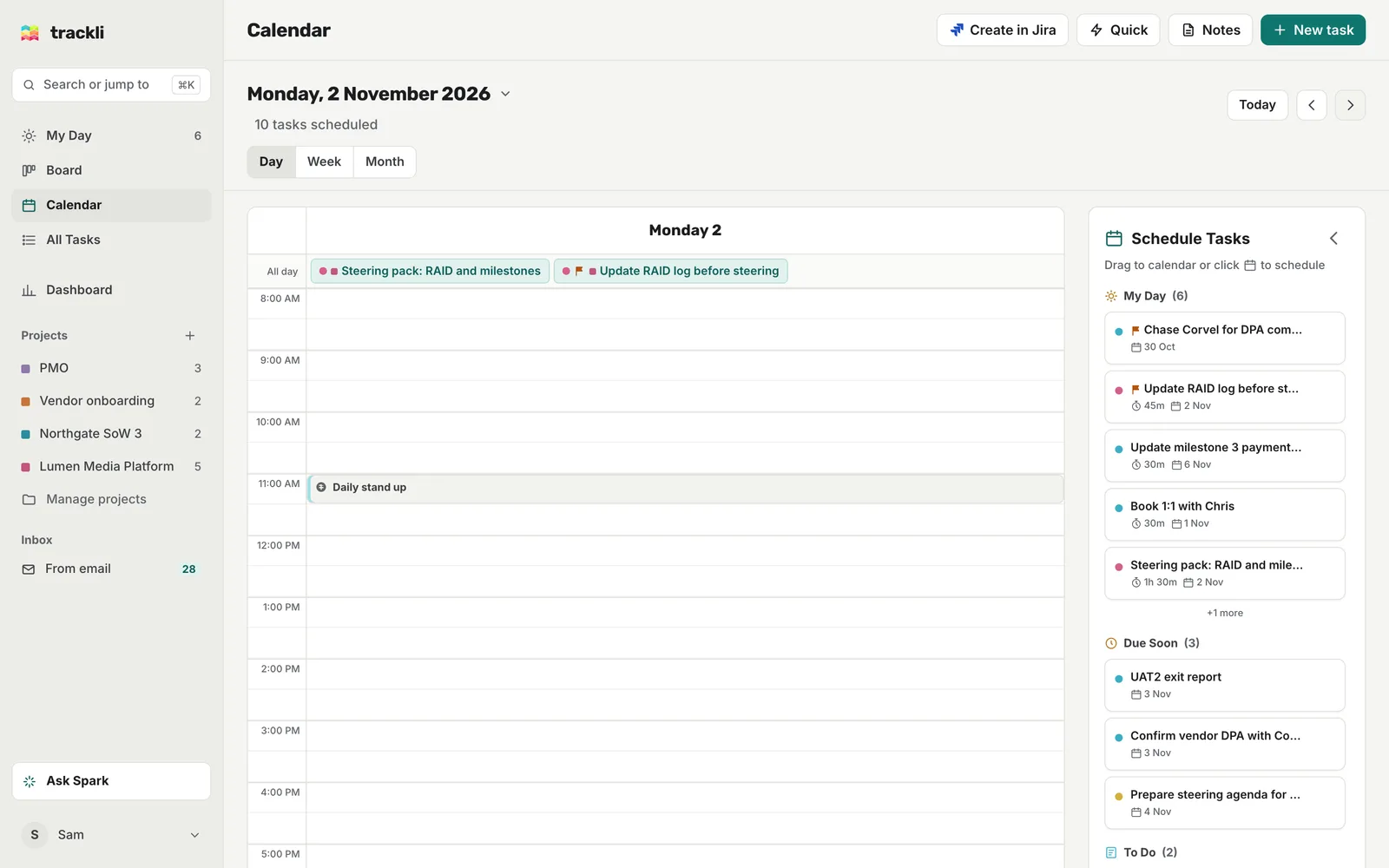
Once you connect Google Calendar or Outlook Calendar, your events appear in grey with a thin coloured edge, so they're easy to tell apart from your tasks. Clicking an event opens it in Google or Outlook.
Events show how you've set them:
- Busy: a solid block
- Tentative: diagonal stripes
- Free: faint, with a dashed border
You can hide free events (and, for Outlook, tentative ones) in Settings, under Integrations.
On a phone
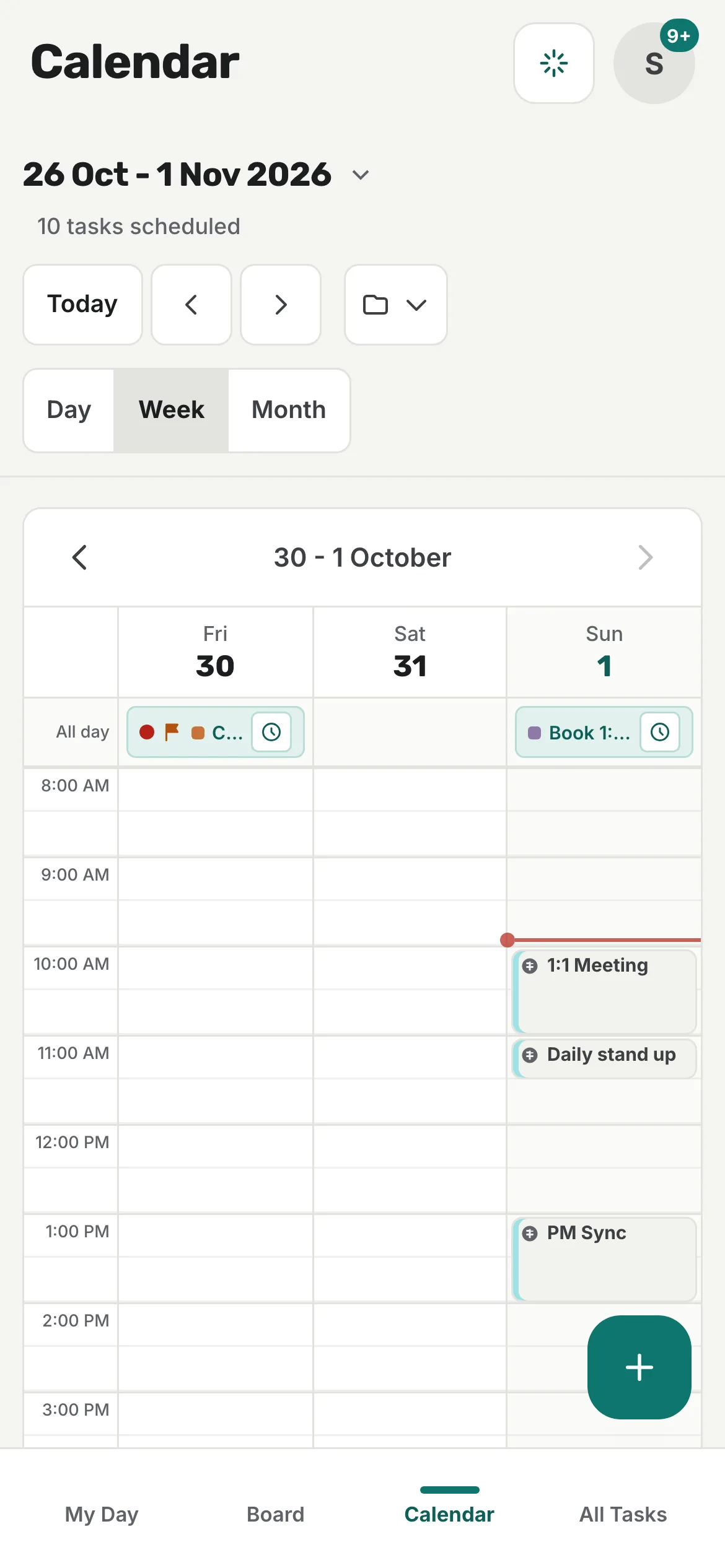
Week view shows three days at a time. Use the arrows to move along the week.
Instead of dragging, use the To Schedule tray at the bottom of Day and Week view. Tap a task, then pick one of the Available Times Trackli suggests around your meetings, or choose Pick custom time.
Tips
- Clicking a project in the sidebar shows only that project's tasks on the calendar. Your meetings stay.
- Tasks show on the calendar on their start date and their due date, so give a task a date and it appears here straight away.