
Search and the command palette
Trackli has two quick ways to find things: search, for looking through everything you've written, and the command palette, for jumping to a task or an action by name.
Search your tasks
Press / anywhere in Trackli (as long as you're not typing in a box) and the search window opens.
Start typing and Trackli looks through your tasks' titles, descriptions, notes, assignees and customers. Type Corvel and you'll see Chase Corvel for DPA comments, Confirm vendor DPA with Corvel and anything else that mentions them, even in the notes. Click a result to open it. Press Esc to close.
On a phone, tap the magnifying glass next to the filters on the Board.
Tasks in archived projects are left out, unless you've ticked Archived in the Board's filter bar.
Search the Board
The Search... box in the Board's filter bar works differently. Instead of opening a list, it filters the cards on the board as you type, matching titles, descriptions, customers, assignees and project names. It's handy for something like UAT when you want to see those cards in their columns. A search can be saved as part of a saved view.
The command palette
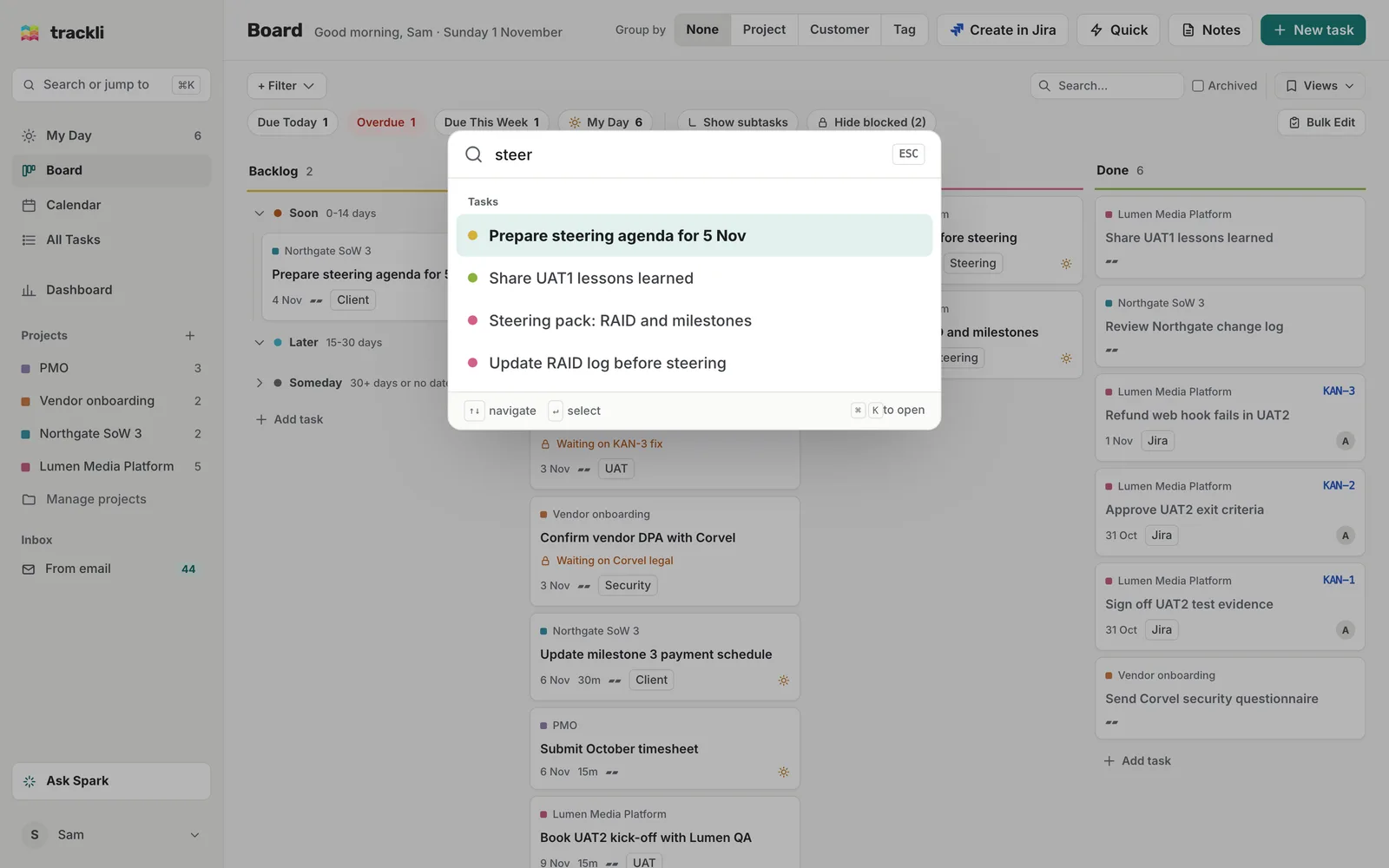
Press ⌘K on a Mac or Ctrl+K on Windows to open the command palette. You can also click Search or jump to at the top of the sidebar.
With nothing typed, it lists quick actions:
- New Task (or press N)
- Go to Today, which opens the calendar on today (on the calendar itself, T does the same)
- Board View and Calendar View
- Daily View, Weekly View and Monthly View, when you're on the calendar
Start typing to narrow the actions down and see matching tasks below them. The palette matches loosely, as long as the letters come in the right order, so raidlog finds Update RAID log before steering without you typing the whole title. It shows up to eight tasks.
Use the up and down arrows to move, Enter to choose, and Esc to close.
Which one to use
- Command palette: you know roughly what the task is called and want to open it fast, or you want to jump somewhere.
- Search: you remember a word from the notes or description, or a person or customer, but not the title.
Tips
- Shortcuts don't fire while you're typing in a field, so / and N are safe to type in task titles.
- The full list of shortcuts is in Keyboard shortcuts.