
Email to task
A lot of work arrives by email. Instead of copying it across by hand, forward the email to Trackli. The AI reads it, works out the actions and holds them for you to check before they go on your board.
Find your Trackli address
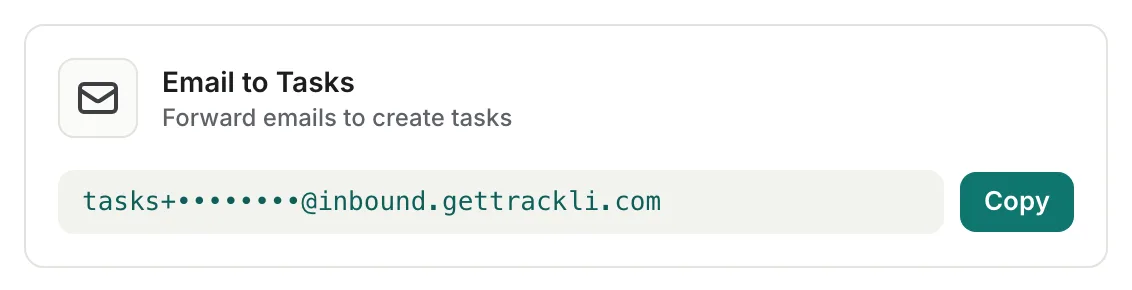
- Open Settings from your account menu.
- Go to Integrations and find Email to Tasks.
- Choose Copy next to your address. It looks like
tasks+abc123@inbound.gettrackli.com.
The address is unique to you, so add it to your email contacts (ex: as "Trackli") to find it quickly.
Forward an email
- Forward the email to your Trackli address.
- If you like, add a short note at the top before you send it. Trackli treats the note as your instructions.
A few seconds later the tasks appear in your Inbox for review.
Add a note to steer it
Your note is the most useful part. Some examples:
- Name the project. Vendor onboarding puts the tasks in that project.
- Add a tag. Add the Security tag tags the tasks, if Vendor onboarding has a Security tag. You can add up to three.
- Set the priority or effort. Urgent makes the tasks critical. Quick sets the effort to low.
- Pick out what matters. Only my actions or just the DPA follow-up tells the AI to ignore the rest.
How tasks get their names
The AI writes a clear title for each action. If your note is vague, it uses the email's subject to fill in what the task is about.
For example, Sam forwards an email with the subject Fwd: Corvel DPA comments and the note follow up with Elena. The task arrives as Follow up with Elena on Corvel DPA comments, rather than just follow up with Elena.
It also picks up dates (ex: "by Friday"), who the action is for and any meeting times in the email.
Review and add the tasks

Nothing goes on your board until you say so.
- Open From email under Inbox in the sidebar. On a phone, tap your avatar and find it under Inbox. The number shows how many are waiting.
- Check each task. You can change the title, due date, assignee and project. Open a task to see more, such as the start date and priority.
- Every task needs a project before it can be added.
- Untick anything you don't want, or remove it with the cross.
- Choose Create Tasks.
Tips
- Forward a thread, not your whole inbox. Trackli works best when you forward the emails that actually need something from you.
- No project in your note? The AI tries to match one from the email. If it can't, pick one when you review.
- On Outlook? The Outlook add-in turns an email into a task without forwarding it.