
Notes to tasks
After a meeting you usually have a page of notes with a few actions buried in it. Notes to tasks reads the notes with AI, finds the actions and gives you a list to check before anything is added.
Open notes to tasks
- On a computer: choose Notes at the top of the page, or press
Cmd+Ctrl+N(Ctrl+Alt+Non Windows). - On a phone: tap your avatar at the top, then Import notes under Create.
Add your notes
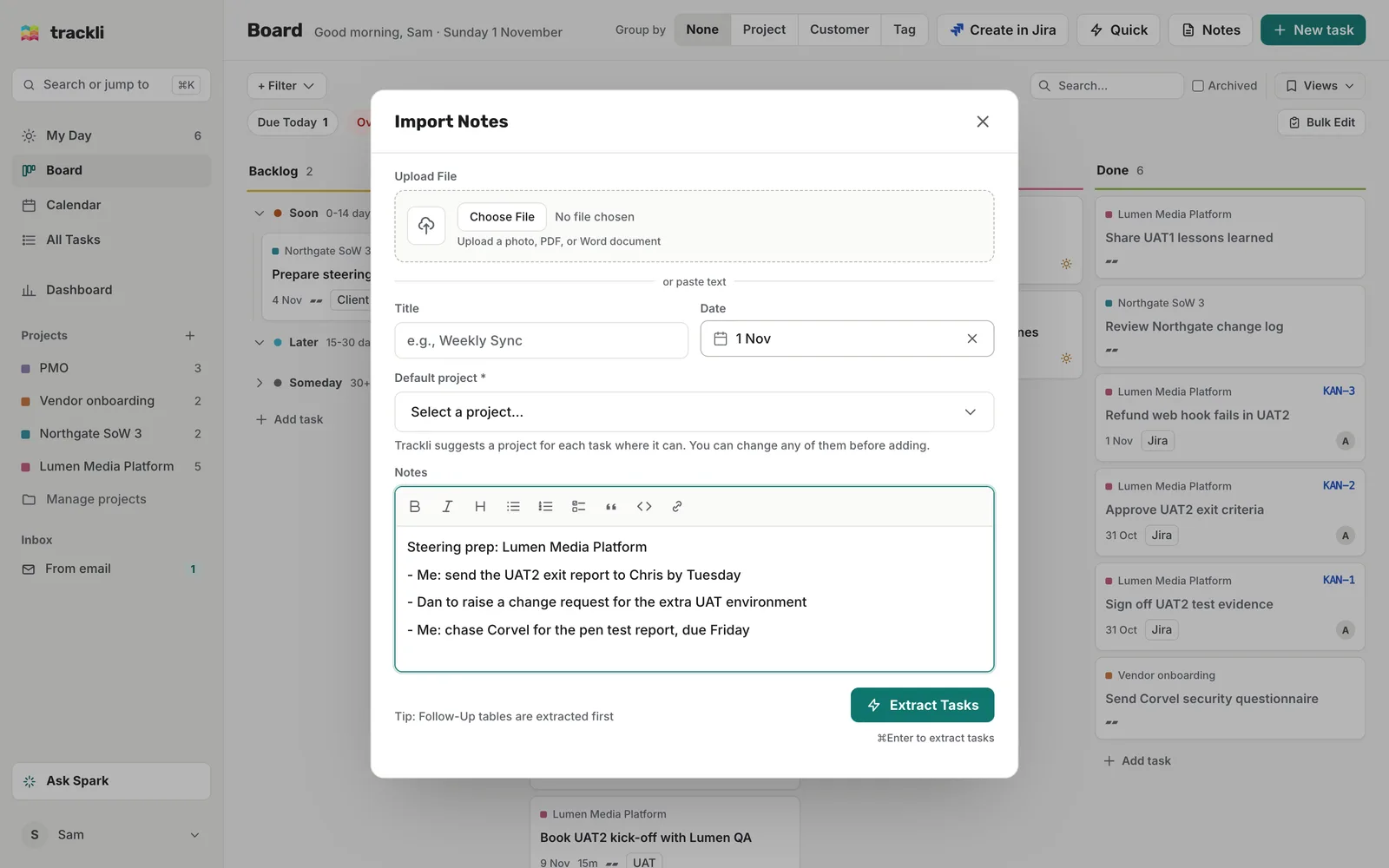
You can either paste text or upload a file.
- Paste or type your notes into the Notes box. Formatting you paste in (bullets, headings, bold) is kept.
- Upload a file under Upload File: a photo (ex: of a whiteboard or handwritten notes), a PDF or a Word document (.docx).
Then:
- Give it a Title and Date if you like (ex: Lumen steering, 5 Nov). This helps the AI understand the notes. Actions without a date in your notes stay undated.
- Pick a Default project. Trackli suggests a project for each task where it can, and uses this one for the rest.
- Choose Extract Tasks, or press
Cmd+Enter(Ctrl+Enteron Windows).
Review the tasks
Trackli shows what it found, for example Found 4 potential tasks. For each one you can:
- Tick or untick it
- Change the title, Assignee, Due date and priority
- Change the project it goes into
- Add a description or tags
- Remove it with the cross
Anything marked Unsure is something the AI wasn't confident about, so give it a second look.
When you're happy, choose Create 4 Tasks (the number matches what's ticked), or press Cmd+S (Ctrl+S on Windows). The tasks go into your Backlog, and any with a date coming up move to To Do the same way your other tasks do.
Why some actions arrive unticked
Trackli is your own to-do list, so actions for other people arrive unticked. If your notes say Chris to send the revised SoW and Sam to update the RAID log before steering, only Sam's action is ticked for Sam. Actions with no owner, or written as "me", are ticked too.
If you want to keep track of someone else's action (ex: so you remember to chase Chris), just tick it before you create the tasks.
Tips
- Name the owner and the date. Lines like Sam to book UAT2 kick-off with Lumen QA by Friday give the best results.
- Nothing found? Try bullet points, or phrases like "Action:" or "TODO:".
- Wrong project? Change it on the review screen before you create the tasks. It's quicker than moving them afterwards.
- Want to forward a meeting email instead? See Email to task.