
Quick add
Quick add is the fastest way to capture a task. You type one line, pick a project and you're done. It's handy when someone stops you in the corridor (ex: "can you chase Corvel?") and you just want it written down.
Open quick add
- On a computer: press
Qanywhere in Trackli, or choose Quick at the top of the page. - On a phone: tap the round + button in the bottom right corner.
You need at least one project before quick add will open.
Add a task
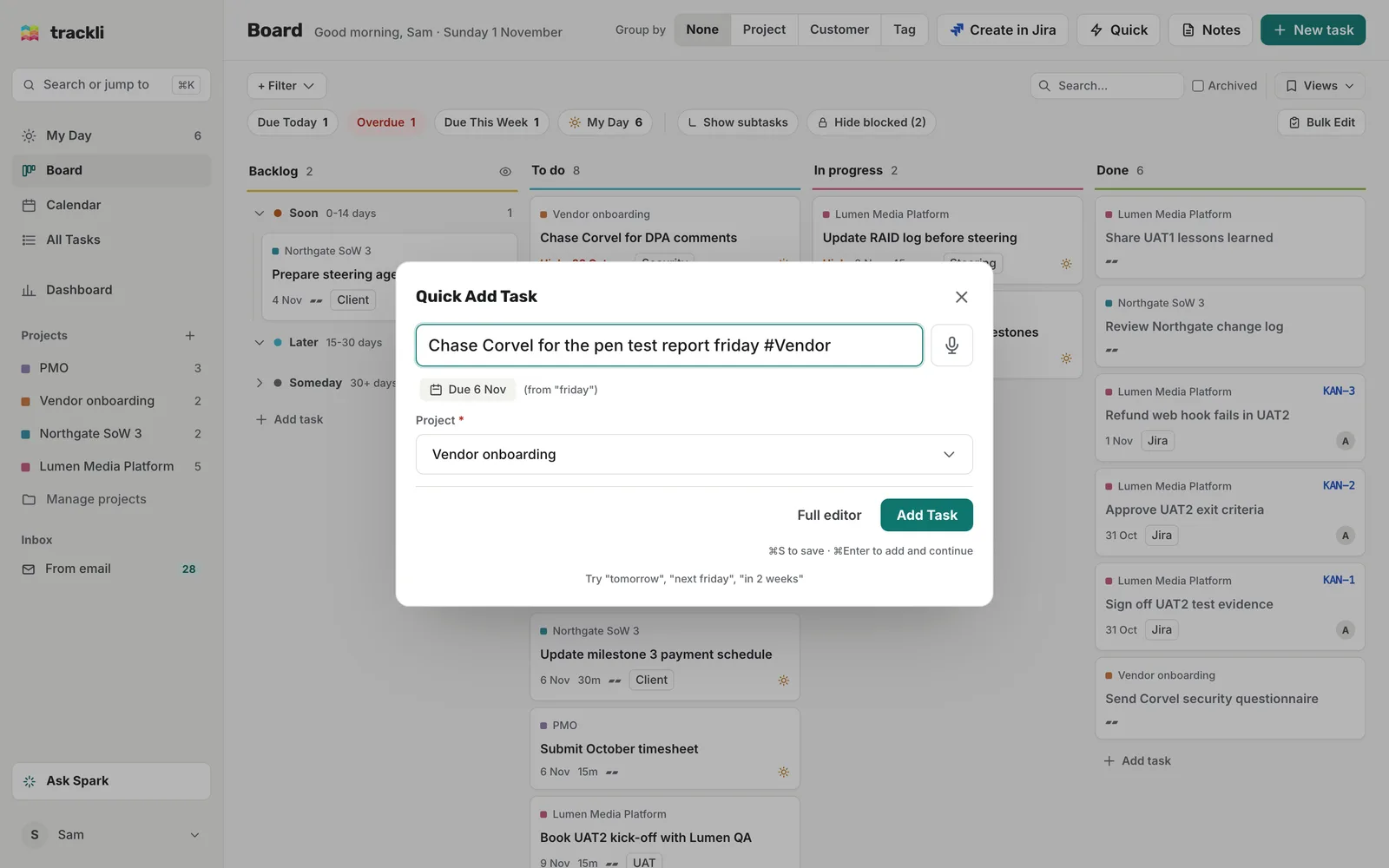
- Type the task, with the date if you know it. For example: Chase Corvel for DPA comments friday.
- Trackli spots the date and shows the due date it found underneath, with the words it read it from. The date words are taken out of the title for you.
- Check the Project. It starts on your default project, and you can change it from the list.
- Press Add Task, or press Enter.
If you'd rather fill in more detail, choose Full editor. Trackli opens the full task window with your title, project and date already filled in.
Dates you can type
Quick add understands everyday phrases, for example:
- today, tomorrow
- friday, next monday
- in 3 days, in 2 weeks, in 1 month
- next week, next month
- end of week, end of month
- a date such as 05/11/2026
If you don't type a date, you can tap Today, Tomorrow, Next Week or Next Month under Due Date instead. On a computer there's also a small date picker.
Pick the project as you type
Type # and the project name in the title and Trackli selects that project for you. For example, Book 1:1 with Chris #PMO tomorrow adds the task to PMO, due tomorrow. It isn't case sensitive, and part of the name is enough (ex: #vendor for Vendor onboarding), as long as it only matches one project. If it can't tell which project you mean, it says so under the title.
Where the task lands
- A task with a date goes into To Do.
- A task without a date goes into Backlog, so it's there when you're ready for it.
Tips
- Add several in a row. Press
Cmd+Enter(Ctrl+Enteron Windows) to add the task and keep quick add open for the next one. - Save with the keyboard.
Cmd+S(Ctrl+Son Windows) adds the task and closes quick add. - Say it instead. If your browser supports voice input, there's a microphone button next to the title. Tap it and speak your task.
- Got a whole list from a meeting? Notes to tasks turns a page of notes into tasks in one go.