
Google Calendar
Connect Google Calendar and your meetings show up in Trackli's Calendar view, so you can see where the gaps are before you plan your work. You can also send your tasks the other way, so they appear in Google Calendar.
Connect
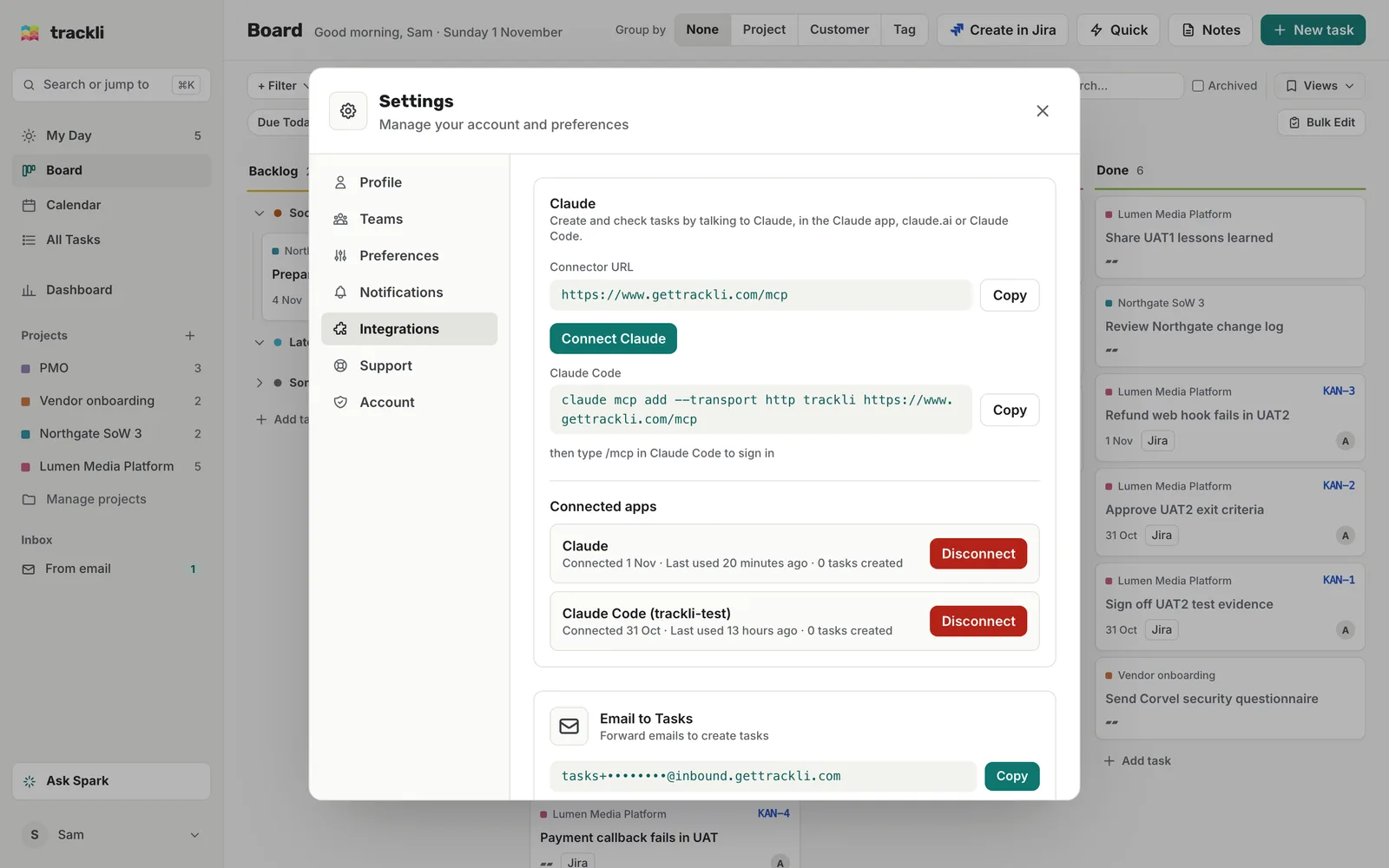
- Open Settings from your account menu and go to Integrations.
- Find Google Calendar and choose Connect.
- Sign in to Google and allow Trackli access to your calendar.
The card then shows Connected to and your Google email address.
Choose what syncs
Once you're connected, the Google Calendar card has these settings:
- Sync tasks to calendar: pick which calendar your tasks go into, or Don't sync. Tasks with a due date appear there as events.
- Sync direction: Both ways, Google Cal → Trackli (you only see your meetings in Trackli) or Trackli → Google Cal (your tasks go to Google, but your meetings don't come into Trackli).
- Show free events: show events marked as "Free" in your calendar.
- Show in Trackli: turn each of your calendars on or off in Trackli's Calendar view. Handy if you share a team or family calendar you don't need to see.
How tasks show in Google Calendar
- A task with a due date becomes an event on that day, with [Trackli] at the start of its title.
- If the task has a start time, the event goes in at that time. Otherwise it's an all-day event.
- Change the task's date or time in Trackli and the event moves too.
- Mark the task done and [Done] is added to the event's title.
- Remove the due date or delete the task, and the event is removed.
For example, Prepare steering agenda for 5 Nov, due 4 November, shows on Sam's Google Calendar on 4 November.
How meetings show in Trackli
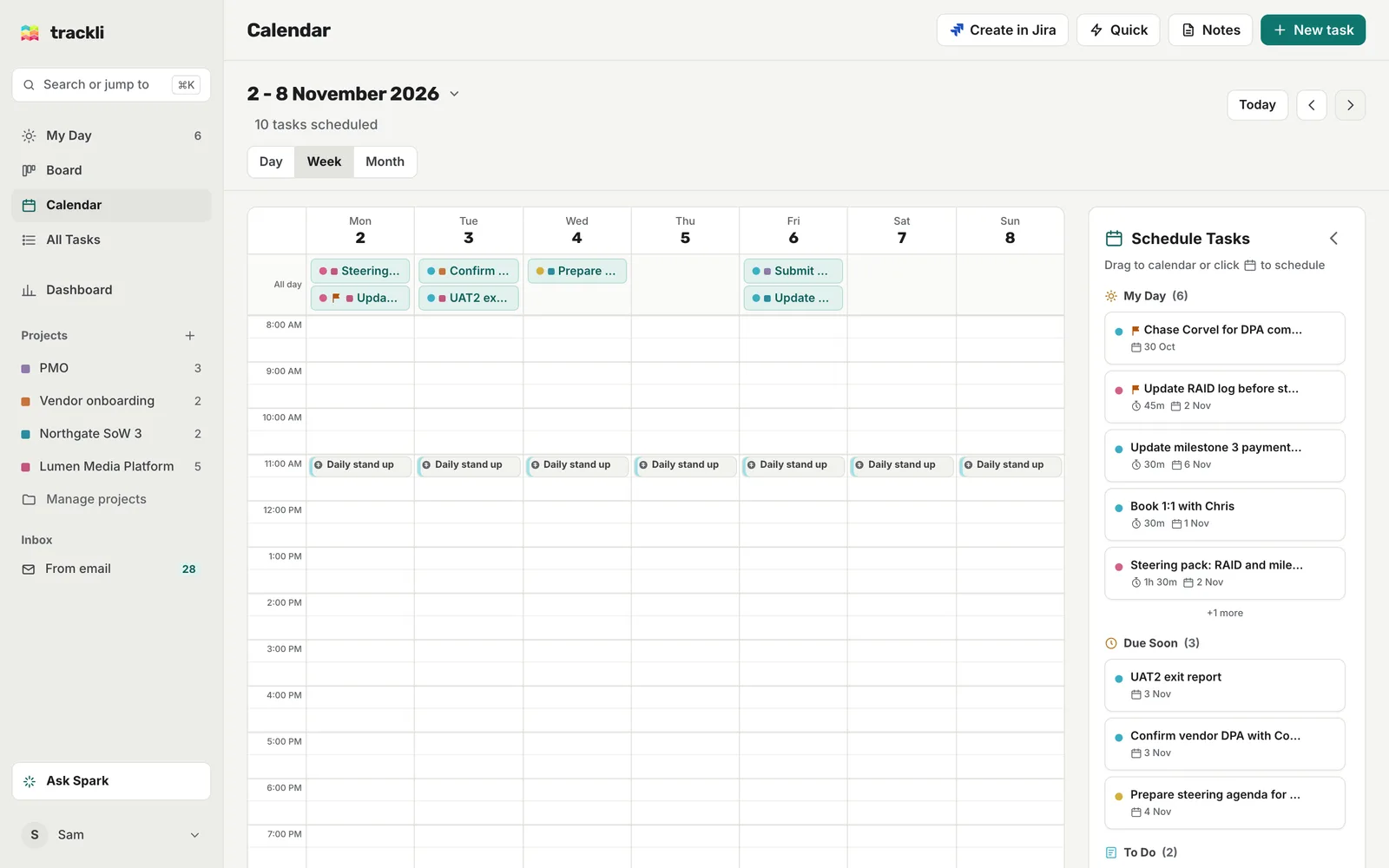
In the Calendar view, meetings sit alongside your scheduled tasks. If you've given an event its own colour in Google, Trackli uses it. Busy meetings are a solid block, and free events (if you've turned them on) are faint with a dashed edge, so you can tell at a glance what you can work over. See Calendar.
Spark can use your meetings too. Ask "When am I free tomorrow afternoon?" and it works it out from your calendar. See Ask Spark.
Meeting Tasks
When a calendar is connected, a Meeting Tasks card appears under Integrations. Turn it on to have Trackli create tasks for meetings you organise:
- Create "Send agenda" task, a set number of days before the meeting
- Create "Send meeting notes" task (due same day)
Trackli works out the project from the meeting. If it can't, the task waits in your Inbox for you to check.
If it stops working
Calendar connections can stop working, for example after you change your Google password or remove Trackli's access from your Google account. When that happens, the Calendar shows a message with a Reconnect Google Calendar button. Press it and sign in again. Your calendar settings stay as they were.
Disconnect
Choose Disconnect on the Google Calendar card. Your tasks stay in Trackli.