
Create a task
There are two ways to add a task by hand. Quick add is for getting something down in a few seconds. The full task window is for when you want to fill in the details straight away.
Quick add
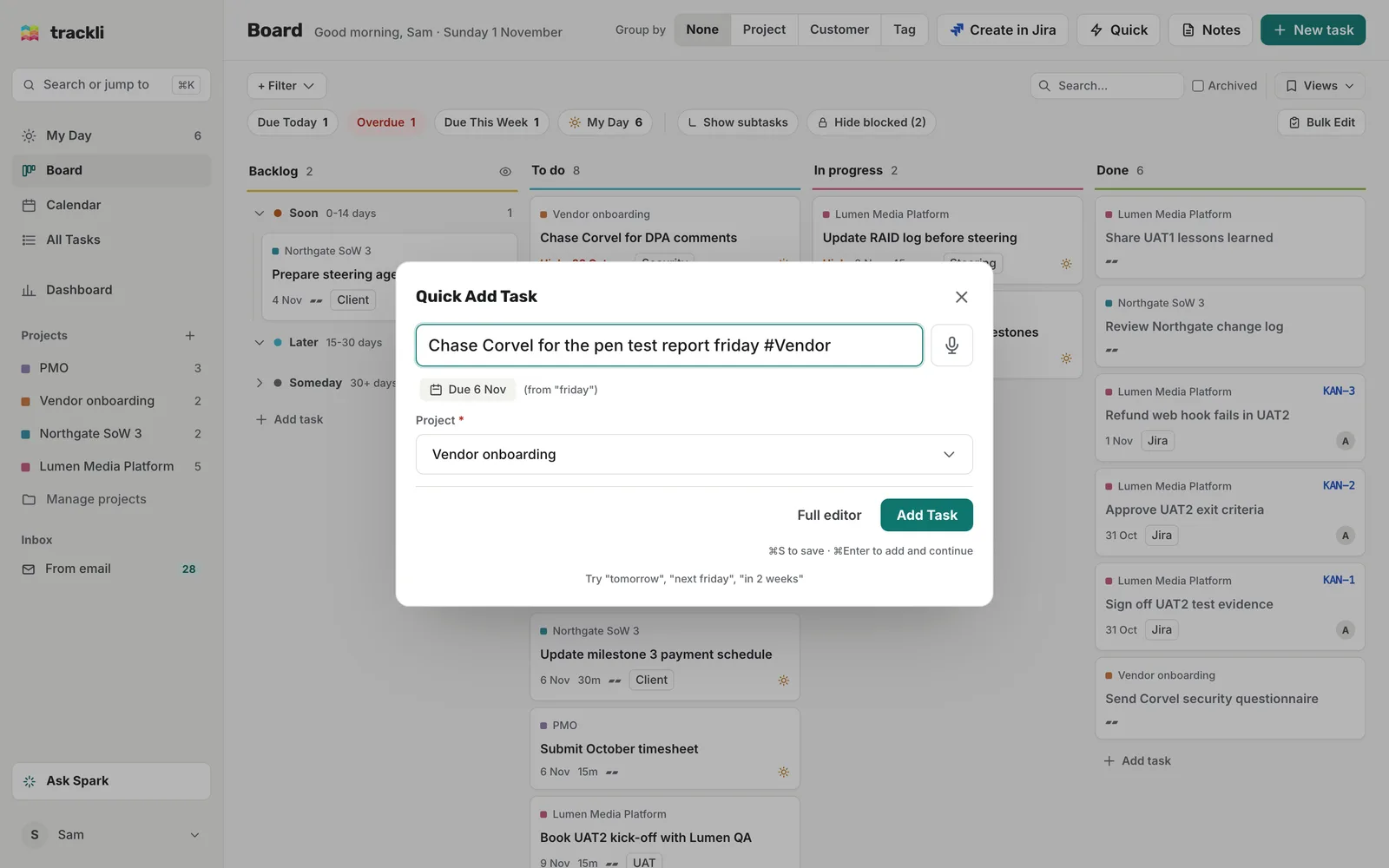
- Press Q, or click Quick at the top of the Board. On a phone, tap the + in the bottom bar.
- Type the task, with a date if it has one: Book UAT2 kick-off with Lumen QA next week.
- Check the Project. It starts on your default project if you have one.
- Click Add Task, or press Cmd+S (Ctrl+S on Windows).
To add several in a row, press Cmd+Enter (Ctrl+Enter) instead. The task is added and the box stays open for the next one.
Need more fields after all? Click Full editor and what you've typed carries over to the task window.
A task with a date goes into To Do. A task without one goes into Backlog.
The full task window
Press N, or click New task at the top of the Board. You can also click Add task at the bottom of any board column, and the new task starts in that column. On a phone, tap your avatar, then New task.
A title and a project are the only things you have to fill in. See The task window for the rest.
Choose the project with #ProjectName
Type a # and part of the project's name anywhere in the title. Chase Corvel for DPA comments #vendor goes into Vendor onboarding, and the #vendor part is taken out of the title when you save.
- Capitals, spaces and dashes don't matter, so #vendoronboarding works too.
- Use one word after the #, with no spaces.
- If more than one project matches, Trackli says it couldn't work out the project, so type a bit more of the name.
This works in both quick add and the task window.
Dates in plain words
In quick add, put the date in the title and Trackli picks it out. You'll see the date it found under the box. These all work:
- today, tomorrow
- a day of the week (friday), or next friday for the Friday of next week
- in 3 days, in 2 weeks, in 1 month
- next week, next month, end of week, end of month
The date words are removed from the title, so Submit October timesheet friday becomes Submit October timesheet, due Friday. You can also use the Today, Tomorrow, Next Week and Next Month buttons under the box.
Typing in a date field
Every date field (Start Date, Due Date and so on) has a box you can type into. Press Enter to use the date it shows.
- Plain words: the same words as above (tomorrow, next friday).
- Shortcuts: T for today, T+1 for tomorrow, T+3 for three days from now, W+1 for a week from today and M+1 for a month from today.
- Numbers: a date in your date format, using /, - or . between the parts (ex: 04/11/2026, 04-11-2026 or 04.11.2026). Leave off the year (4/11) and Trackli uses the next time that date comes round.
Under the box there are quick buttons too: T (today), +1 (tomorrow), W (a week from today) and M (about a month from today).
Tips
- If you save from the task window without a due date, Trackli checks first in case you meant to add one. Choose Continue Anyway if not.
- Whether 04/11 means 4 November or 11 April depends on your date format in Settings, Preferences.