
Finding your way around
Trackli has the same few pieces on every page. Once you know where they are, everything else is one click away.
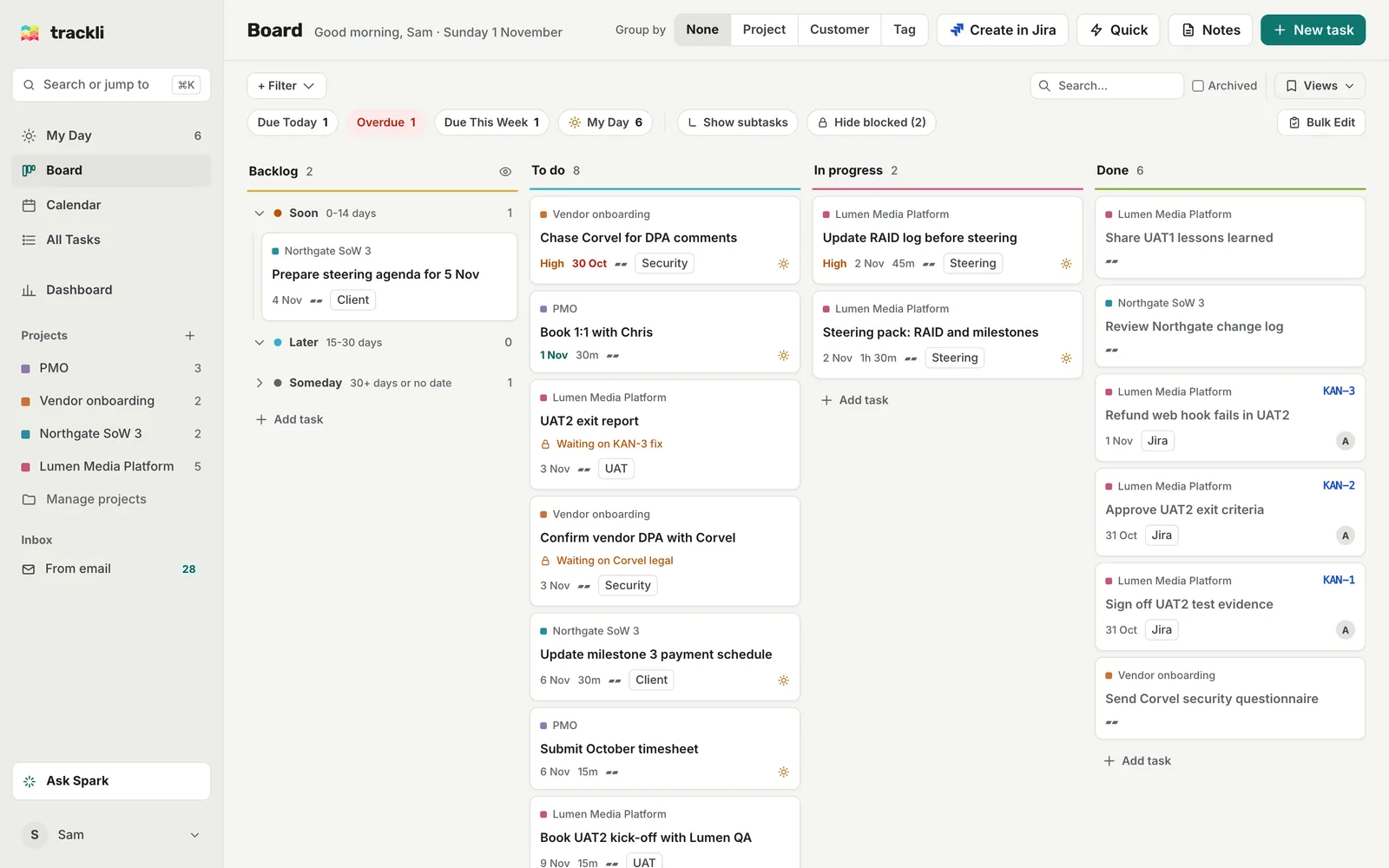
The sidebar
On a computer, the sidebar runs down the left side.
- Search or jump to at the top opens the command palette (Cmd+K on a Mac, Ctrl+K on Windows). Use it to find a task or switch views. See Search and the command palette.
- The views: My Day, Board, Calendar and All Tasks, with Dashboard underneath. The Dashboard shows how your week is going, such as what's due, what's overdue and what you've completed.
- Projects lists your projects with the number of open tasks in each. Click one (ex: Vendor onboarding) to filter the view you're on to that project. Click it again to see everything. The + next to the heading creates a new project, and Manage projects opens the full list.
- Inbox appears when tasks are waiting for you to review, such as emails you've forwarded to Trackli.
- Ask Spark at the bottom opens Spark, the assistant.
- Your name at the very bottom opens the account menu.
On a smaller window (ex: a laptop with the window half width), the sidebar shrinks to icons. Hover over an icon to see its name.
The page header
The top of each page shows its name and the main buttons for that page. On the Board, that's Group by, Quick, Notes and New task (plus Create in Jira if you've connected Jira).
The account menu
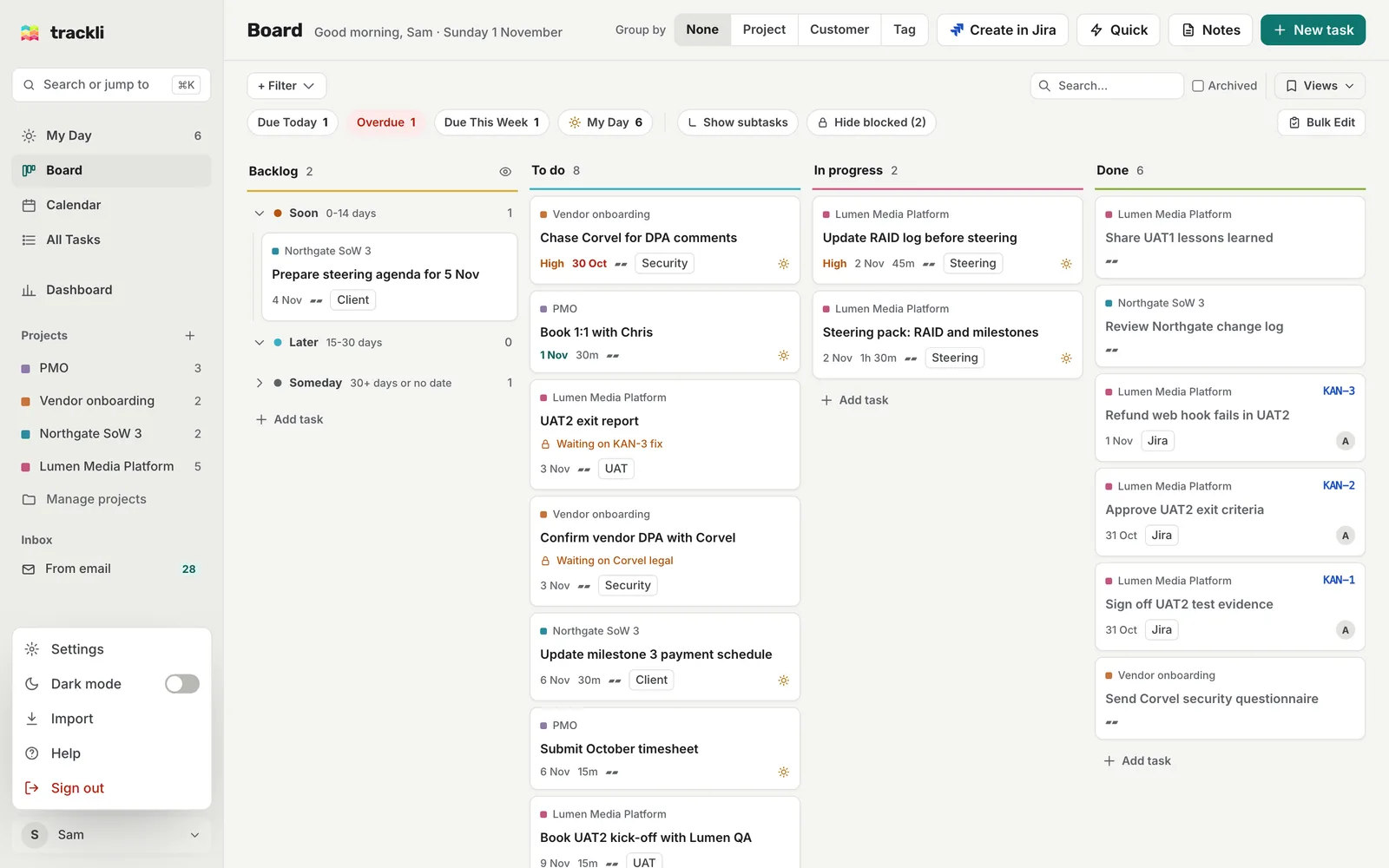
Click your name at the bottom of the sidebar to open it. It holds:
- Settings
- Dark mode (a switch)
- Import, to bring in tasks from another app
- Help, which opens this help centre in a new tab
- Sign out
On a phone
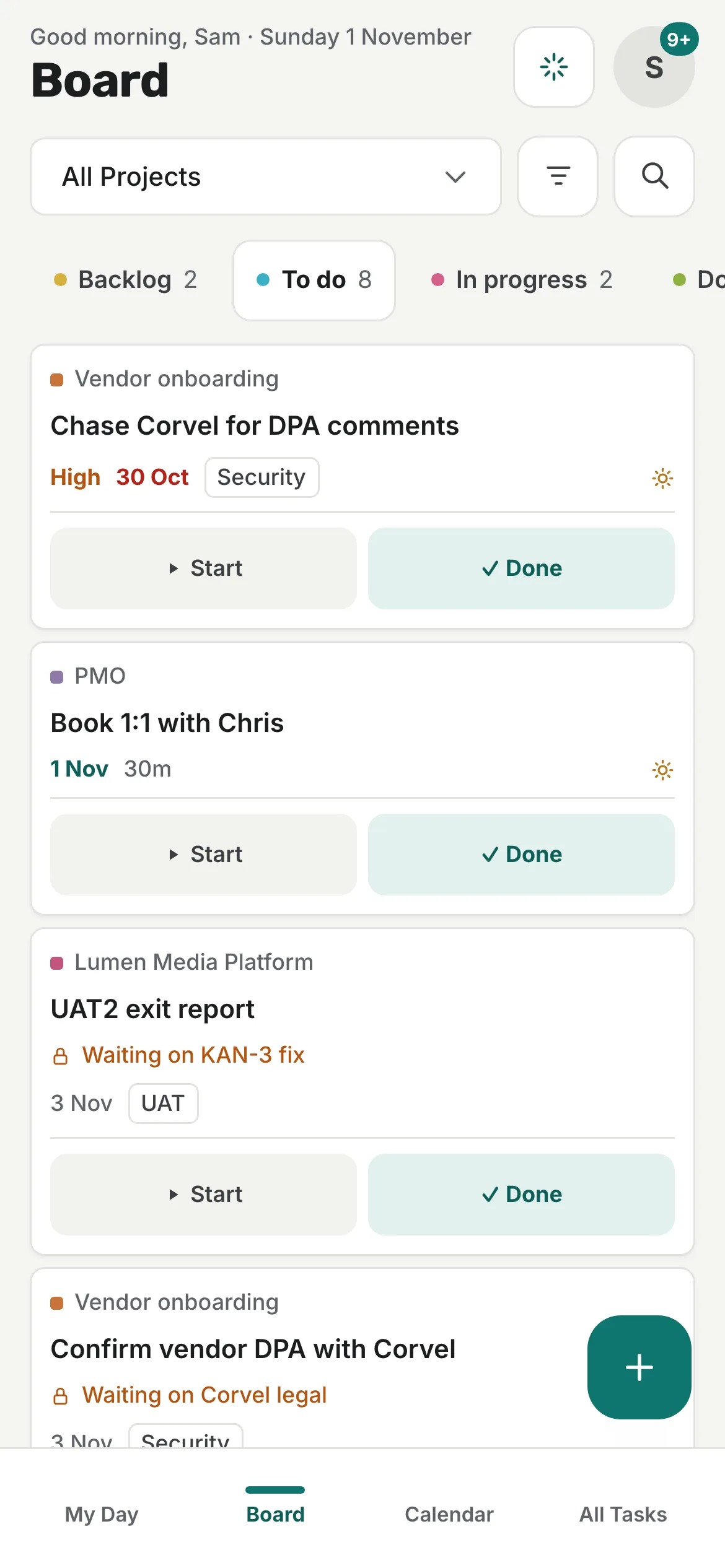
Trackli rearranges itself on a phone so it's easy to use with one thumb.
- The bottom tab bar has My Day, Board, Calendar and All Tasks. The + button opens quick add (My Day has its own add button).
- Ask Spark is the spark icon at the top right.
- Your avatar next to it opens the More sheet. That's where you'll find the Dashboard, your projects, Manage projects, the Inbox, New task, Import notes, Send feedback and the account menu.
Tips
- Clicking the Trackli logo takes you back to your default view. You can choose which view that is in Settings, Preferences, Default view on login.
- A small number on your phone avatar means there are tasks waiting in your Inbox.