
Your first project and task
Every task in Trackli lives in a project, so you'll make a project first and then add tasks to it. If you're new, Trackli walks you through both when you first sign in. This article covers doing it yourself at any time.
Create a project
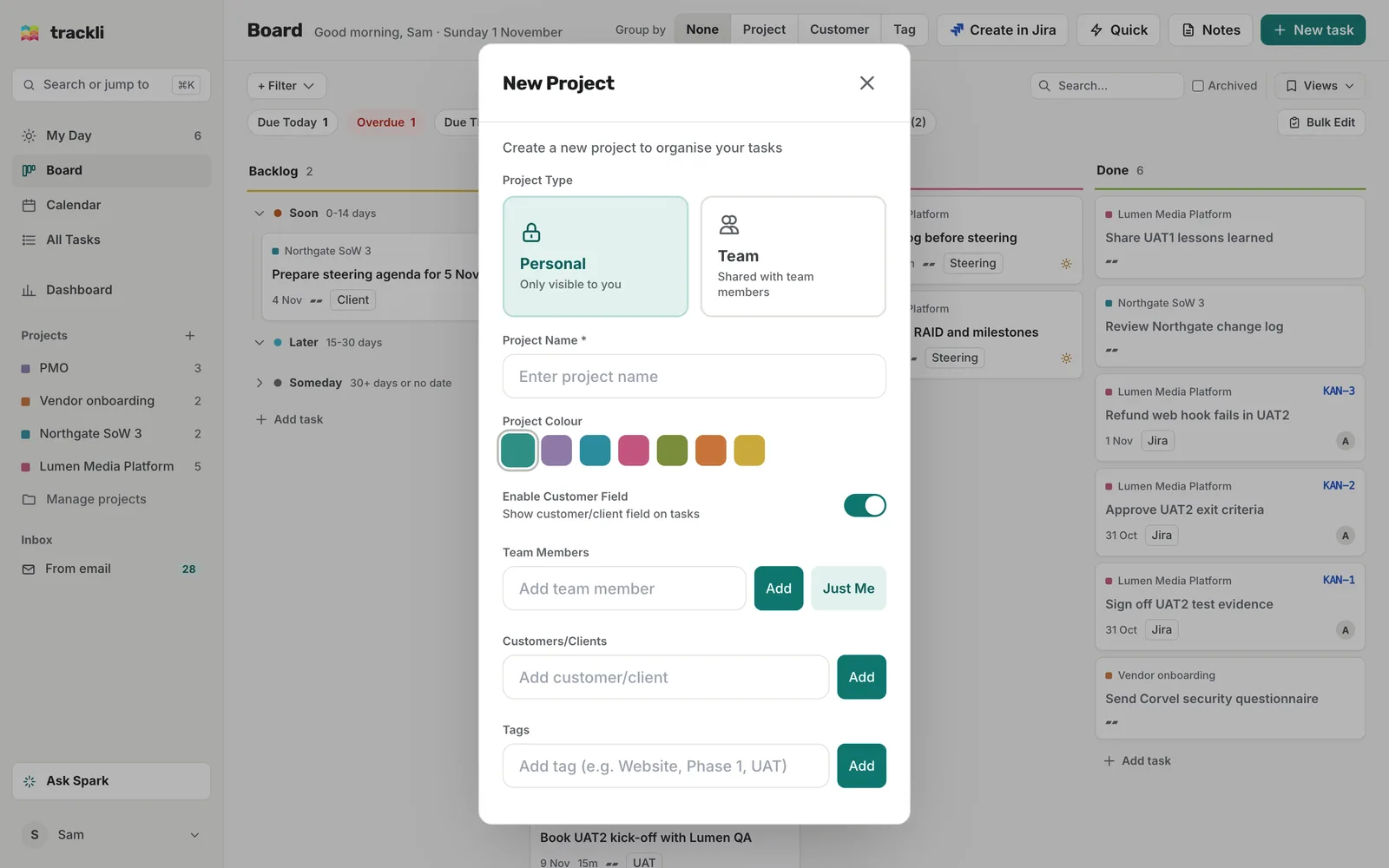
A project is a home for a piece of work. Sam has one per client or workstream, such as Northgate SoW 3, Vendor onboarding and PMO.
- In the sidebar, click the + next to Projects. On a phone, tap your avatar, then the + next to Projects.
- If you're in a team, choose Personal (only you can see it) or Team (shared with your team). If you're not sure, pick Personal. You can share it later. There's more in Working with a team.
- Type a Project Name (ex: Vendor onboarding).
- Pick a colour. It shows on every card in that project, so you can spot it at a glance.
- Add any tags you'd like to use (ex: Security). You can always add more later.
- Click Create Project.
There's more on the other project settings, like customers and team members, in Projects.
Add a task

There are two buttons at the top of every page. Quick adds a task in one line. New task opens the full task window, with every field. (Notes, in between, turns meeting notes into tasks.) The quickest way is quick add.
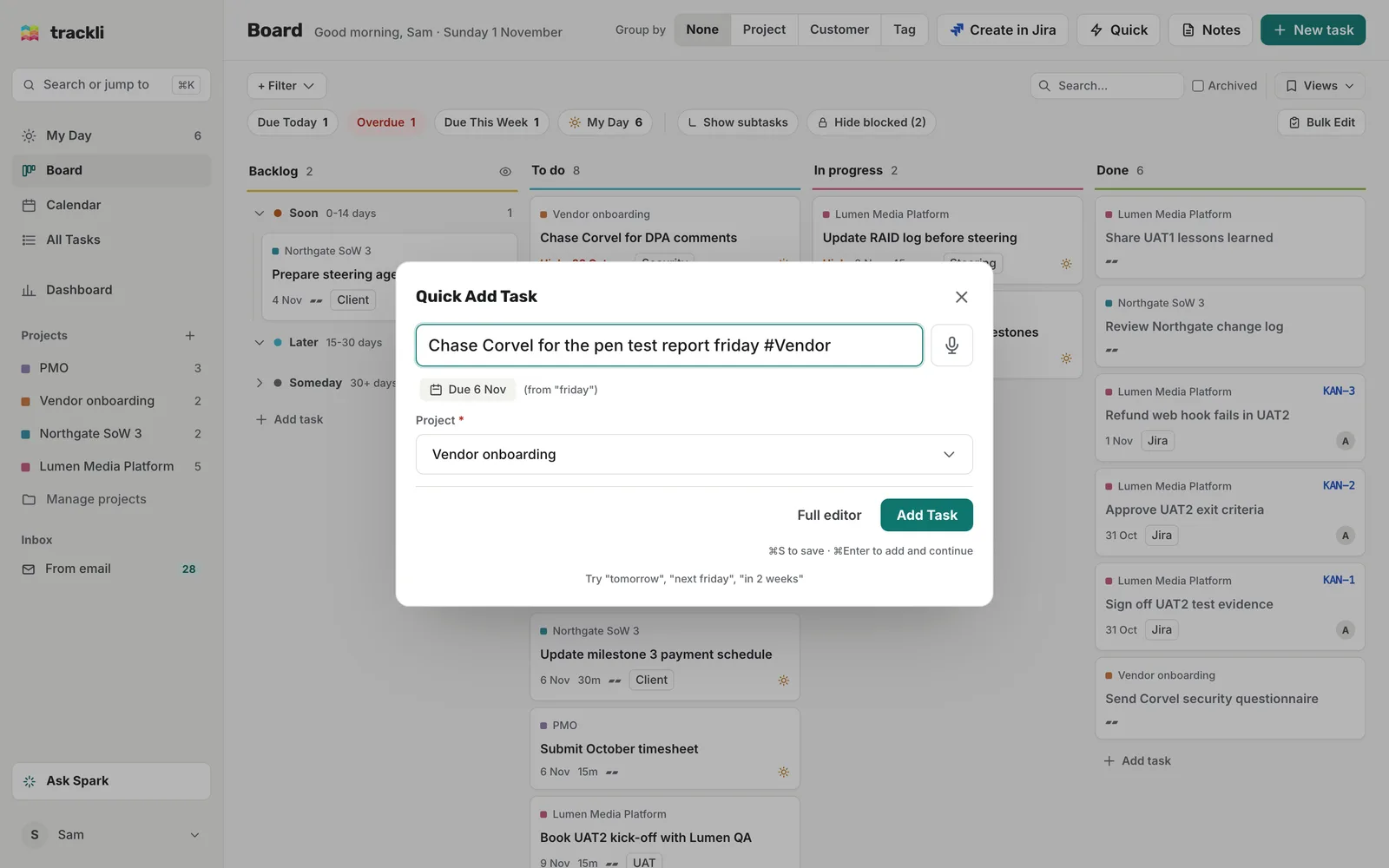
- Press Q (or click Quick at the top of the Board). On a phone, tap the + in the bottom bar.
- Type what needs doing, with a date if you have one: Chase Corvel for DPA comments friday.
- Check the Project is right. If you only have one project, or you've set a default project, it's already filled in.
- Click Add Task.
Trackli spots "friday" and sets it as the due date, so the task is called Chase Corvel for DPA comments. A task with a date goes into To Do. One without a date goes into Backlog.
For more ways to add tasks, see Create a task.
Move it along
On the Board, drag the card from To Do to In Progress when you start, and to Done when you're finished. You can also hover over a card and use the quick buttons underneath it, such as Start working and Mark done.
On a phone, the board shows one column at a time. Use the tabs at the top to switch columns, and the Start and Done buttons on each card.
Tips
- Click a card to open the task window and add more detail, like priority, notes or subtasks.
- Add the task to My Day if you want to get it done today.