
Jira and Confluence
Connect your Atlassian account and your Jira issues show up as Trackli tasks, next to the rest of your work. Changes go both ways, so you can move a card in Trackli and Jira keeps up. Confluence tasks you're mentioned in can come across too.
Connect
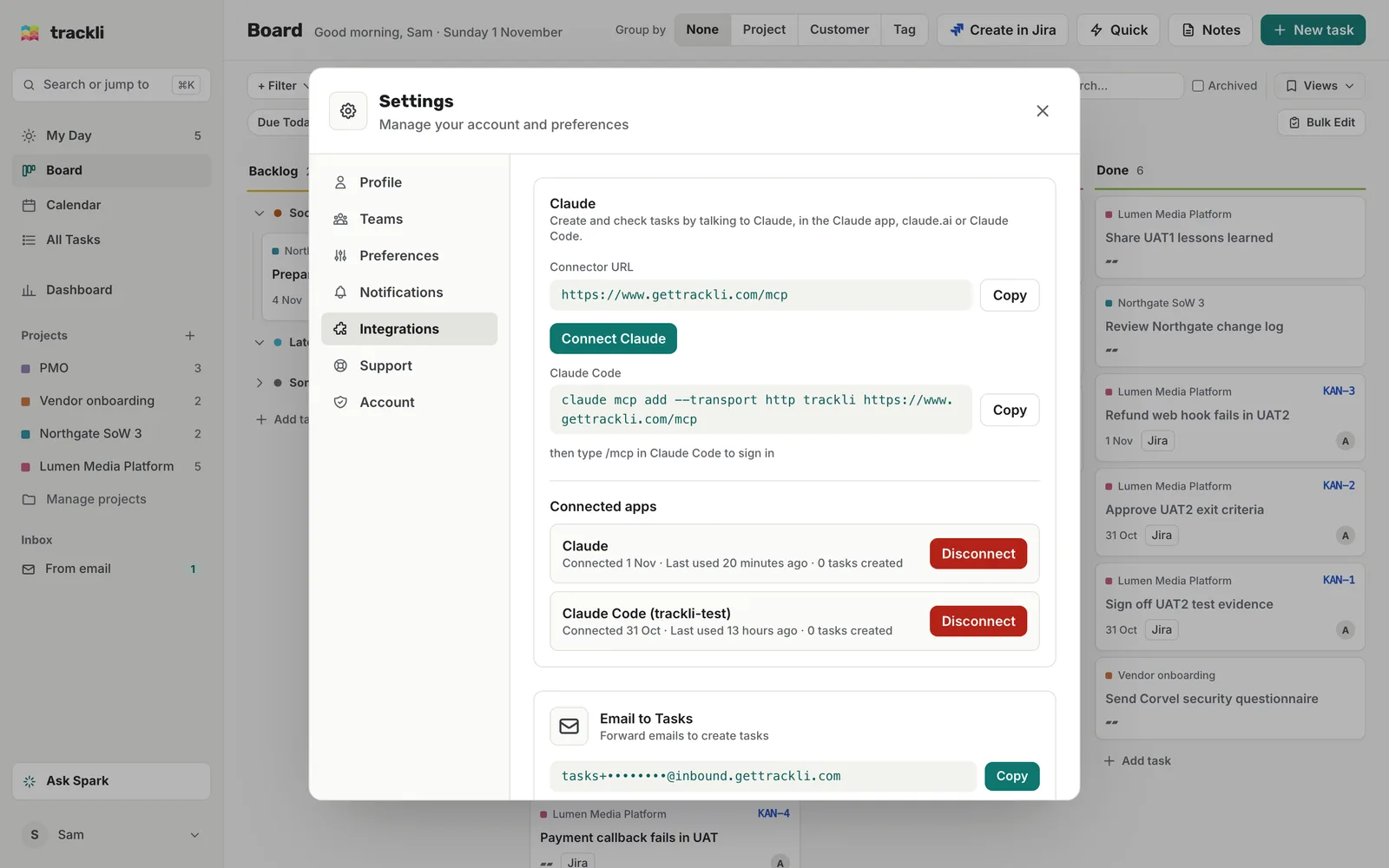
- Open Settings from your account menu and go to Integrations.
- Find Atlassian (Jira & Confluence) and choose Connect.
- Sign in to Atlassian, pick your site and allow Trackli access.
The card then shows Connected to and your site name.
Choose which Jira projects to sync
- On the Atlassian card, open Jira Projects and turn on the projects you want.
- Choose Configure on a project to set it up:
- Import: Assigned to me (the default), All issues, Created by me or Assigned to me or unassigned
- Issue Types: untick types you don't want, such as sub-tasks
- Incoming Status Mapping: which Trackli column each Jira status goes to
- Outgoing Status Mapping: which Jira status each Trackli column moves the issue to
- Priority Mapping: how Jira priorities match Trackli's
- Choose Sync Jira to bring the issues in.
Leave a mapping on Auto-detect and Trackli makes a sensible guess from the status name. If the lists are empty, run Sync Jira once to load them.
Each Jira project gets a Trackli project with the same name, and its issues land there.
What stays in sync
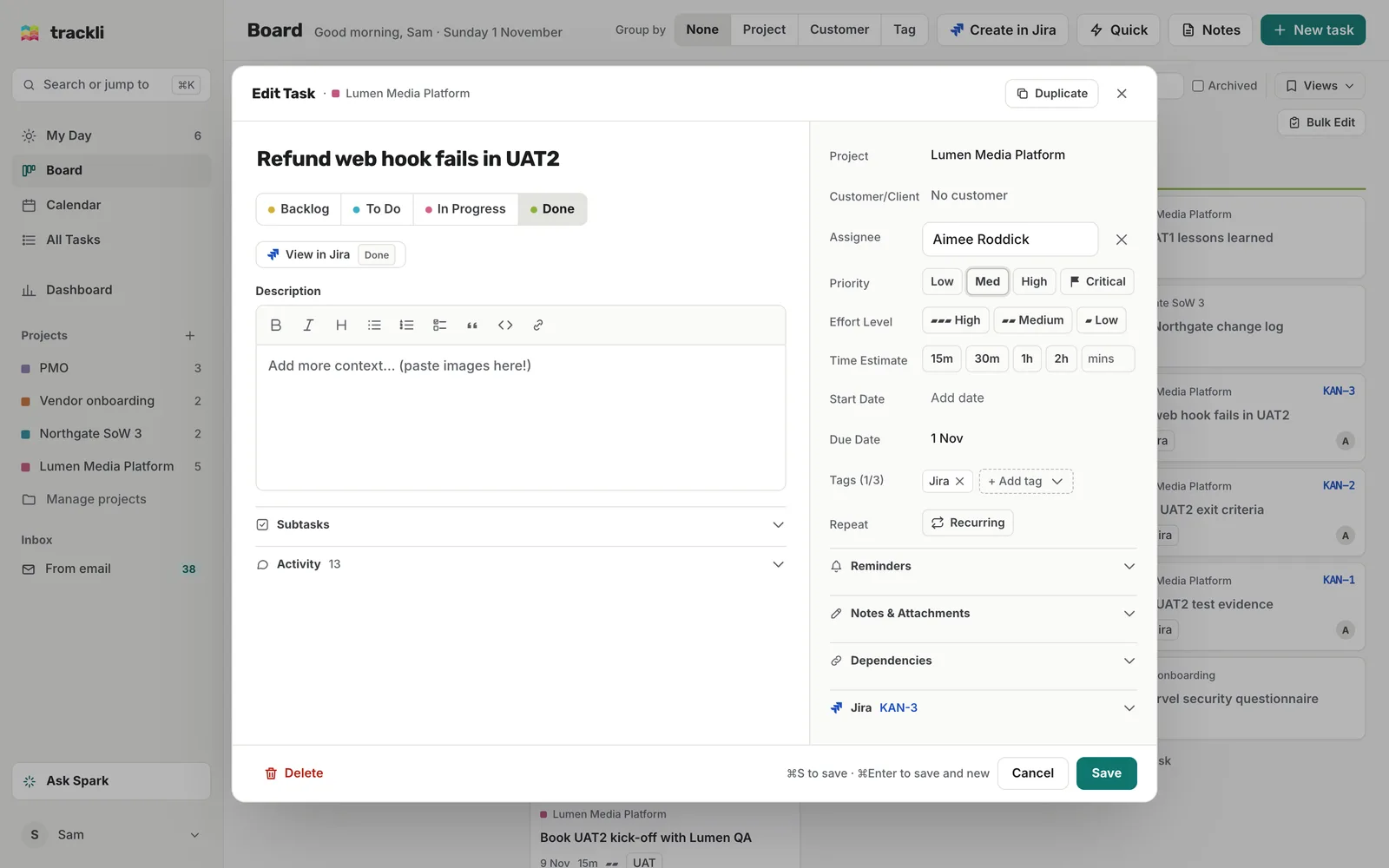
From Jira to Trackli: title, description, status, priority, due date, comments and attachments. The task window also shows the sprint, parent or epic, issue type and any custom fields, such as T-Shirt Size.
From Trackli to Jira: title, description, priority, due date and status. Drag UAT2 exit report to Done and the KAN issue moves to the Jira status you mapped.
On a Jira task, open the Jira part of the task window to pick any status from the issue's own workflow under Jira Status. When you add a comment, tick Sync to Jira to post it on the issue as well. Deleting a synced comment or attachment asks whether to Delete from both or just from Trackli.
Real-time sync on the card shows Active when Jira changes reach Trackli straight away. Otherwise Trackli checks every 15 minutes.
Create a Jira issue from Trackli
Choose Create in Jira at the top of the page (on a phone, tap your avatar and Create Jira issue). Pick the Project and Issue Type, write a Summary, and fill in the fields your Jira project asks for, such as a sprint or epic. Choose Create Issue and it comes back as a Trackli task.
Tasks blocked in Jira
If a Jira status sounds blocked (ex: Blocked, On Hold or Waiting), the task shows as blocked in Trackli, with a reason like Jira: Blocked. It clears itself when the issue moves on. You can't change a Jira block in Trackli, but your own blocks are never overwritten. See Blocked tasks.
Confluence tasks
Choose Sync Confluence on the Atlassian card. Trackli finds the tasks on Confluence pages where you're mentioned and puts them in your Inbox under From Confluence. Give each one a project and choose Create Tasks. When you mark one done in Trackli, it's ticked off in Confluence too.
Tips
- Keep the project names the same. Trackli finds the right project by its name. If you rename the Trackli project (or the Jira project), the next sync makes a new project and moves the issues into it. If you've renamed one by accident, change it back.
- Filter by sprint. When Jira is connected, the board filters include Sprint, so you can see just the active sprint.
- If Trackli asks you to Re-authorise, choose it on the Atlassian card to turn on newer features like comment sync.